One generated overview image with your onboarding stages in order, the owner of each stage and two or three key points per stage. It is a picture for orientation, not an HR form or checklist people can fill in. Check names, roles and timings.
Four-stage customer care onboarding with owners and a welcome line
Company or team
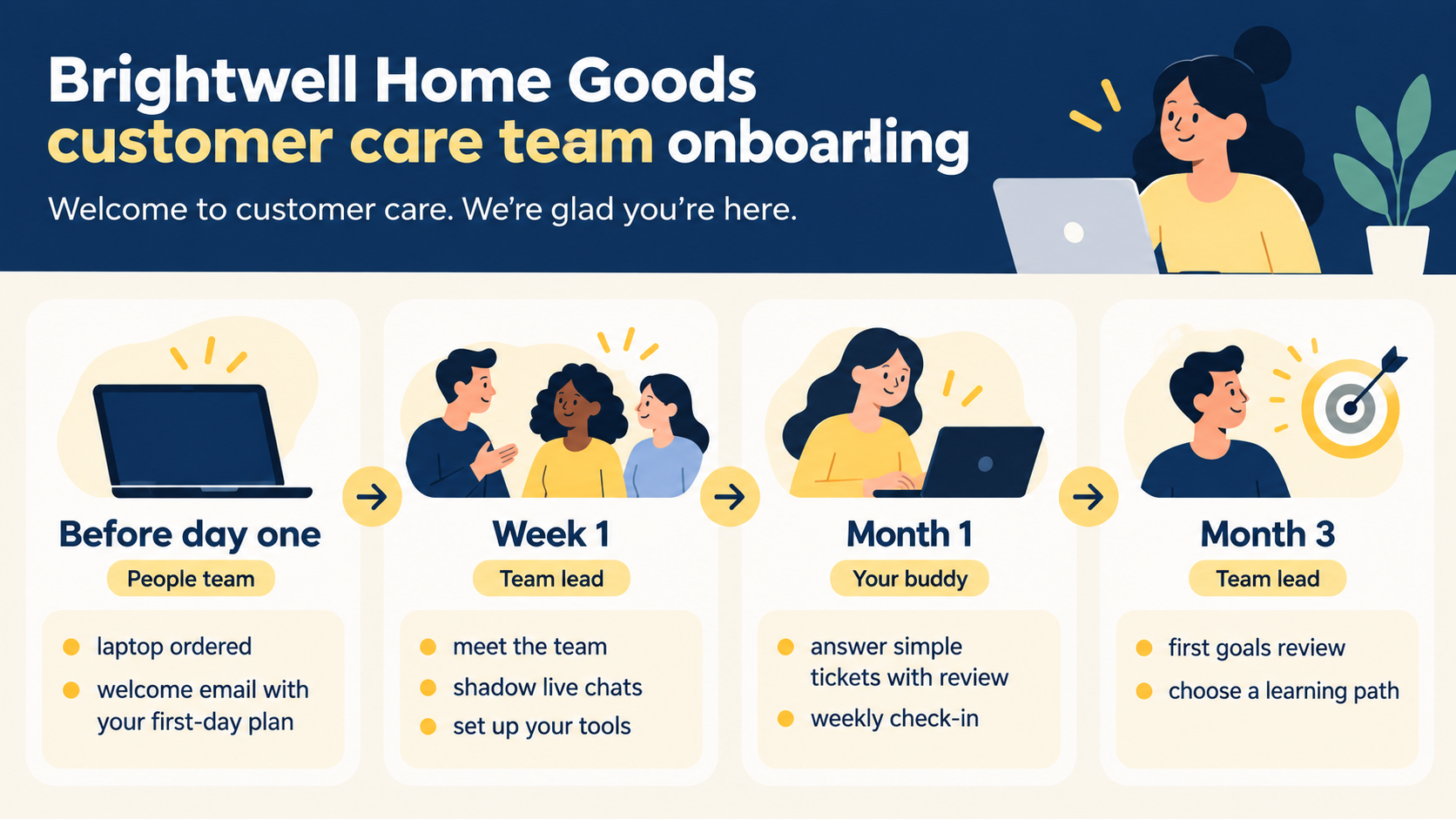
Brightwell Home Goods customer care team
Stages, owners and key points, one stage per line
Before day one (People team): laptop ordered, welcome email with your first-day plan
Week 1 (Team lead): meet the team, shadow live chats, set up your tools
Month 1 (Your buddy): answer simple tickets with review, weekly check-in
Month 3 (Team lead): first goals review, choose a learning path
Six stages, two with no owner, long points and no welcome or colors
Company or team
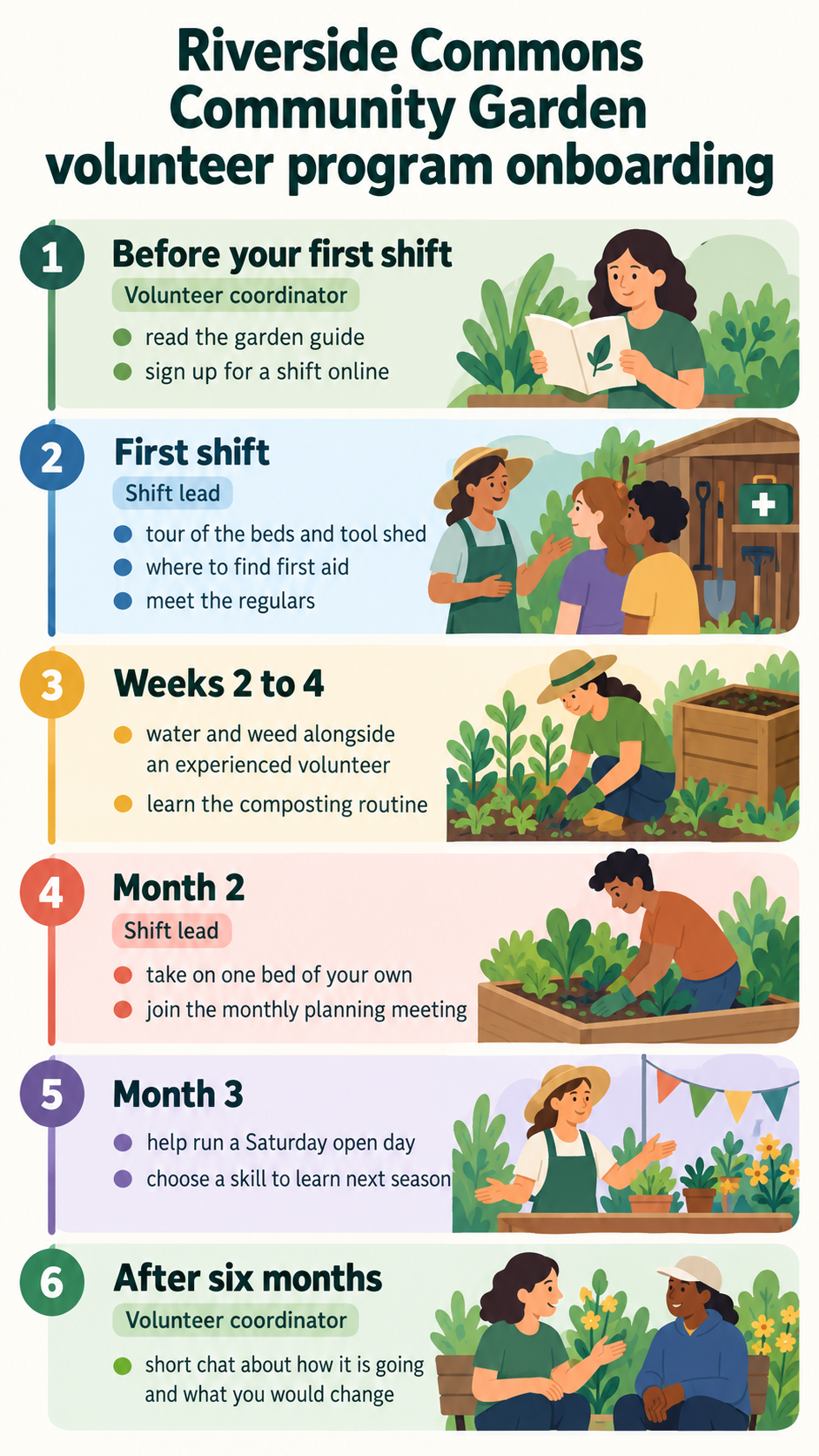
Riverside Commons Community Garden volunteer program
Stages, owners and key points, one stage per line
Before your first shift (Volunteer coordinator): read the garden guide, sign up for a shift online
First shift (Shift lead): tour of the beds and tool shed, where to find first aid, meet the regulars
Weeks 2 to 4: water and weed alongside an experienced volunteer, learn the composting routine
Month 2 (Shift lead): take on one bed of your own, join the monthly planning meeting
Month 3: help run a Saturday open day, choose a skill to learn next season
After six months (Volunteer coordinator): short chat about how it is going and what you would change
Welcome message (optional)
Left empty
Brand colors (optional)
Left empty
Six stages with long points, two stages without an owner, and no welcome or colors. Checks missing owners are left blank rather than guessed, long points wrap legibly, and the layout does not turn into a fillable checklist.
Same task, three directions
Pick a direction to start from.
01
Journey road
Stages as milestone markers along a road, each with an owner tag, for a friendly first-day slide.
02
Minimal timeline
Evenly spaced dots on a clean line, suited to an intranet page or a printed welcome pack insert.
03
Welcome poster
The welcome message at the top and the stages stacked below as cards with colored owner tabs.
What the template keeps
The parts that stay consistent.
01
Stage order
Stages keep your sequence, so new starters see what comes first and what comes later.
02
A clear owner per stage
Owners sit next to their stage, so people know who to ask, and blanks stay blank.
03
High-level only
Key points stay short, leaving detailed tasks to your HR system or handbook.
How to use it
From details to a result.
01
Name the team
The company, team or program new people are joining. It becomes part of the title.
02
Write each stage on one line
Stage name, the owner in brackets, a colon, then two or three short key points.
03
Add a welcome and colors
Both are optional. The welcome line appears exactly as you write it.
04
Review, generate and check
Look over the brief in Vizify and send it when it reads right. Check every name and role before new starters see it.
Output boundaries
What to check before you use it.
This is an orientation visual. It is not a working HR checklist, form or policy document, and it contains no working links.
Stage names, owners and points are image text. Check each person's name and role before sharing.
Three to six stages with two or three short points each fit. A detailed plan belongs in your HR system or a document.
Owners appear only as you supply them. Nobody is assigned automatically.
The result is one image. Changing a stage later means generating again.
QuestionsCan new hires tick off tasks on the employee onboarding infographic?+
No. It is an overview picture, not a checklist. Keep the task list in your HR system or a shared document and use the image to show the big picture.
Should I use people's names or roles as owners?+
Roles such as team lead or buddy stay accurate when people change jobs. If you use names, check their spelling on the result.
Can I make an onboarding infographic for volunteers or students?+
Yes. Any program with stages and people responsible for them works, from a volunteer rota to a student mentoring scheme.
Can it include our benefits and policies?+
Keep those in your handbook, where they can be kept up to date. The image stays high-level and adds no policies you did not write.