Show candidates or hiring managers how your recruitment process works, or share a few of your own hiring figures with their source, in one infographic.
One generated image that explains your hiring steps in order, or presents three to five of your recruitment figures with a source, for the readers you name. It is not a job ad. Check every step, timing and number before sharing.
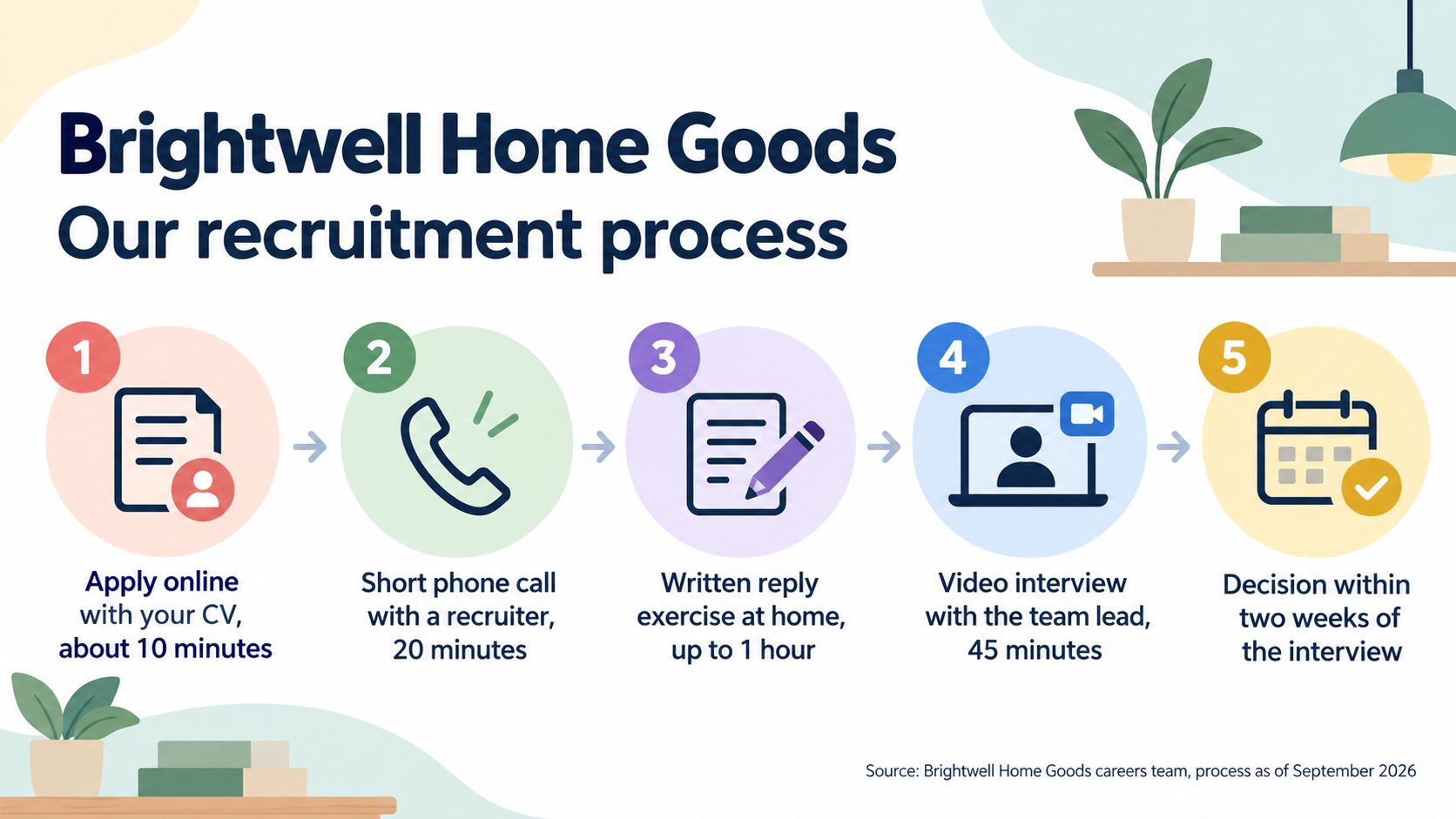
1. Apply online with your CV, about 10 minutes
2. Short phone call with a recruiter, 20 minutes
3. Written reply exercise at home, up to 1 hour
4. Video interview with the team lead, 45 minutes
5. Decision within two weeks of the interview
Source (needed for figures)
Brightwell Home Goods careers team, process as of September 2026
Five hiring figures for managers with a long source
Company or team
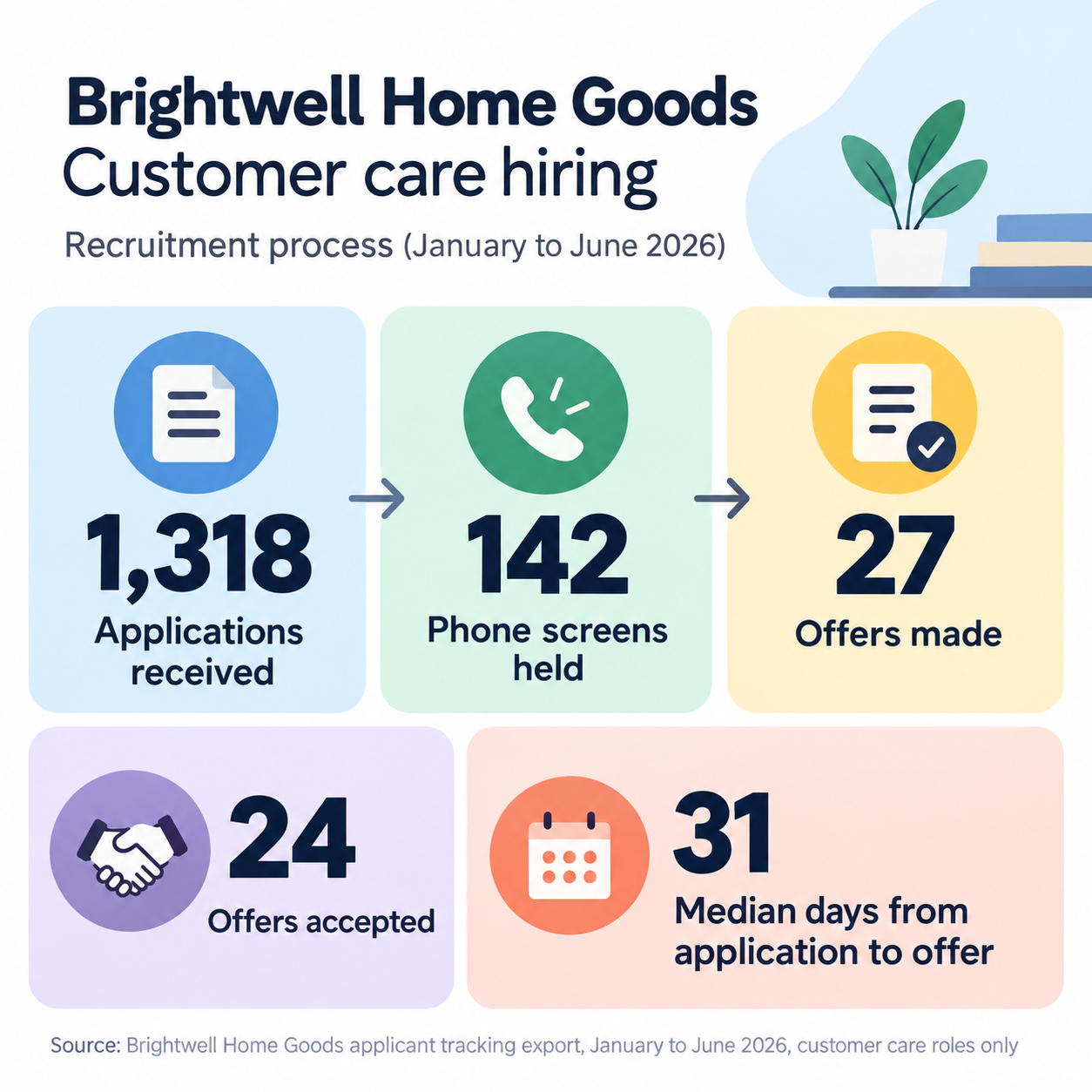
Brightwell Home Goods customer care hiring
Who will read it
Hiring managers at the quarterly people review
Steps or figures, one per line
Applications received: 1,318
Phone screens held: 142
Offers made: 27
Offers accepted: 24
Median days from application to offer: 31
Source (needed for figures)
Brightwell Home Goods applicant tracking export, January to June 2026, customer care roles only
Figures instead of steps, a manager audience and a long source. Checks each count is copied exactly, no conversion rates or funnel proportions are calculated from them, and nothing turns the image into a job ad.
Same task, three directions
Pick a direction to start from.
01
Candidate journey
Numbered steps along a gently curving path from applying to a decision, with timings in small tags.
02
Figures panel
A row of large figure cards with labels and the source beneath, for a people review or an internal update.
03
What to expect list
A vertical checklist of steps with timings on the right, for a candidate information pack.
What the template keeps
The parts that stay consistent.
01
Clear order or clear numbers
A process reads step by step; figures read as large values with their labels.
02
Source with the figures
Any numbers are shown with where they came from and when.
03
Explanation, not advertising
The image explains how hiring works rather than selling a vacancy.
How to use it
From details to a result.
01
Name the company and readers
Say whose process it is and who will read it. Candidates and hiring managers need different tones.
02
List steps or figures
One per line. For a process, number the steps and add timings you can commit to. For figures, include the unit and period.
03
Add the source for figures
Where the numbers come from and what period they cover. A process can use the date it was last checked.
04
Review, generate and check
Send the brief from Vizify once you are happy with it, then compare every step, timing and number with your records.
Output boundaries
What to check before you use it.
Steps, timings and figures are image text and may be altered. Check each against your process and records before publishing.
The template does not calculate rates or averages from your counts. For a hiring funnel with exact proportions, build a chart from your data.
This explains a process. It is not a job advertisement and adds no vacancies, salaries, apply buttons or links.
Three to six steps, or three to five figures, per image. Show steps and figures in separate images.
The result is one flat image, and the formats are aspect-ratio directions.
QuestionsCan I use a recruitment infographic as a job post?+
It is designed to explain how hiring works, not to advertise a role. Put the vacancy, salary and apply link in the post text, and attach the image to show candidates what to expect.
Can I show diversity hiring figures?+
Only figures you can source, in wording your organization has approved. Enter them with the source, and check each value carefully on the result.
Can one image show both our steps and our figures?+
It reads better as two images, one for the process and one for the numbers. Each request makes one image.
Can I add a link to our careers page?+
You can type it into the additional direction, but web addresses drawn inside images often come back with errors and are not clickable. Put the link in the post text instead.