Channel niche and content themes
Audience and upload promise (schedule, format, tone)
Visual identity — colors, mood, references
Required text, such as channel name or tagline
Create YouTube channel art that keeps your channel name in the centered safe area. You get one 16:9 banner image to check and resize to 2560×1440.
Choose a destination to guide the composition, then check the actual image size. Exact pixels, crop marks, bleed and CMYK are not guaranteed; resize or prepare the file before publishing or printing.
Channel niche and content themes
Audience and upload promise (schedule, format, tone)
Visual identity — colors, mood, references
Required text, such as channel name or tagline
YouTube Banner Generator · One generated image to review
The brief targets YouTube's 2560×1440 upload canvas and works around the roughly 1546×423 centered safe area that actually displays across devices, instead of a generic web-banner shape.
Desktop, TV, and mobile each crop the same upload differently; the brief keeps your channel name, face, or logo inside the zone all three share.
Vizify organizes your niche, audience, and upload promise into a focused YouTube banner brief.
The complete brief opens in Vizify, where you can generate, review, revise, and save the work without rebuilding the prompt.

Create cute YouTube channel art from your name, theme and colors. A compact center layout aims to reduce crop losses; check text and device previews before uploading.

Make YouTube channel art with original flames, from low embers to a roaring blaze, while your channel name stays high-contrast and readable in the center.

Make pink YouTube channel art in the shade and texture you want, from light pink clouds to hot pink glitter, with your channel name centered and readable.
YouTube recommends a 2560×1440 pixel image at a 16:9 ratio, under 6MB. That's the full canvas you upload — confirm the current file-size limit in YouTube's own upload dialog before publishing, since platform limits can change.
YouTube crops the same 2560×1440 upload differently by device — TV shows the whole image, desktop shows a wide strip, and mobile shows only the centered portion, roughly 1546×423 pixels. Keep your channel name, face, or key message inside that centered zone so it survives every crop.
No, and it isn't meant to. One upload adapts to each surface's crop. The brief keeps essential identity inside the shared safe area so the banner still reads correctly even when the outer edges are trimmed on phones.
Yes — put the exact wording in your brief. YouTube banners route to Vizify's typography-capable image models, but always review the rendered text in Vizify before you save or upload it, since generated text isn't guaranteed to be pixel-perfect.
The brief targets YouTube's recommended canvas, but the generated image isn't a guaranteed exact-pixel export. Confirm the final dimensions and file size against YouTube's current upload requirements before you publish.
Creator, Business, Podcast, and Music start the brief from a different visual language — personality-led, corporate, audio-show, or music-brand — before you add your own niche and identity details in the prompt.
No — this tool is scoped to YouTube's channel art banner. Video thumbnails, the round channel profile picture, and video watermarks use different dimensions and aren't generated here.
You can prepare the brief here without an account. Sign in to Vizify when you want to generate, save, or reuse the banner.
Yes. The brief you build here opens in Vizify, where you can adjust the prompt, controls, and generation direction, then regenerate or save the result.
Writing the banner brief is free. Generating needs sign-in: a free account includes a small image allowance paid from its sign-up credits, and after that you need Pro or a credit pack.
This page has no upload. Describe the logo's colors and shape in the brief, or attach the logo in the Vizify conversation before you send, then check that it wasn't redrawn or distorted.
Name your channel’s niche, the audience you’re making it for, and the upload promise that keeps people coming back — weekly tutorials, a podcast feed, a music release schedule. Add the exact text you want visible, like your channel name or a short tagline, plus the colors and mood that match your video thumbnails. If you already have a logo or a consistent visual style, mention it so the banner reads as part of the same channel.
Don’t place your channel name, face, or any must-read text near the outer edges of the canvas — TV shows the full 2560×1440 image, but desktop and mobile crop in from the sides and top, so only the centered safe area is guaranteed to show. Don’t assume the first export is upload-ready without a check — confirm the final file against YouTube’s current size and format limits before publishing, since recommended dimensions can shift. And don’t skip a plan for how the banner reads at a glance; visitors see it for a second before deciding whether to explore the channel.
YouTube’s channel art canvas is 2560×1440 pixels, but TV, desktop, and mobile each crop that canvas differently. Only the centered area, roughly 1546×423 pixels, appears reliably across every device — that’s where your channel name, logo, and any critical message belong. Use the outer regions for background texture, atmosphere, or supporting imagery that can survive being cropped without losing meaning.
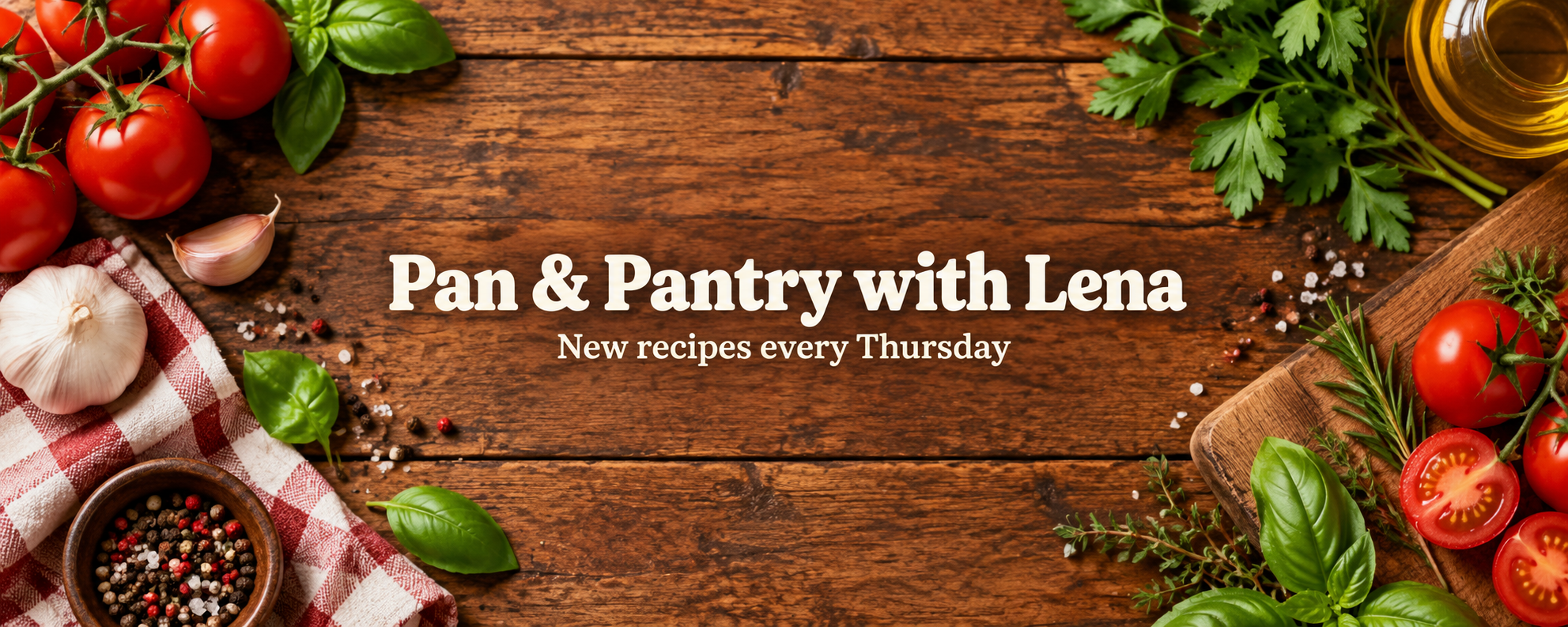
YouTube banner for 'Pan & Pantry with Lena', a weekly budget cooking channel. New videos every Thursday. Channel name large and centered with 'New recipes every Thursday' smaller underneath, both inside the safe area. Warm tomato red and cream, an overhead wooden table with herbs toward the edges. Creator type, bold style.
What final channel name and gaming theme should the YouTube banner use?
Make a YouTube banner for my gaming channel. I haven't decided on the name yet.
Checks that the reply asks for the channel name or offers a text-free banner, rather than inventing a channel name that ends up rendered in the art.