Category labels
A value for each category
The unit being counted
How much one icon represents
Icon shape, title and subtitle (optional)
List your categories and values, say what each icon stands for, and pick an icon shape. Vizify builds a native MakeCharts pictograph with one row of icons per category, partial icons for remainders and a legend, rather than a drawn picture of one.
Your data and choices open in Vizify for review. Nothing runs until you send it.
Category labels
A value for each category
The unit being counted
How much one icon represents
Icon shape, title and subtitle (optional)
A native pictograph artifact in Vizify
A legend stating what one icon represents
Value labels next to each row
Each row is drawn from your value divided by the value per icon. At 10 per icon, a value of 45 shows four full icons and a half icon, and the exact number sits beside the row.
The chart states what one icon stands for, such as 1 icon = 10 students, so nobody has to guess the scale.
Category names, units and the order you list them in are carried into the chart unchanged. Nothing is re-sorted, rounded away or renamed unless you ask.
Change a value, add a category or switch the icon shape in the same conversation, and Vizify revises the same chart.
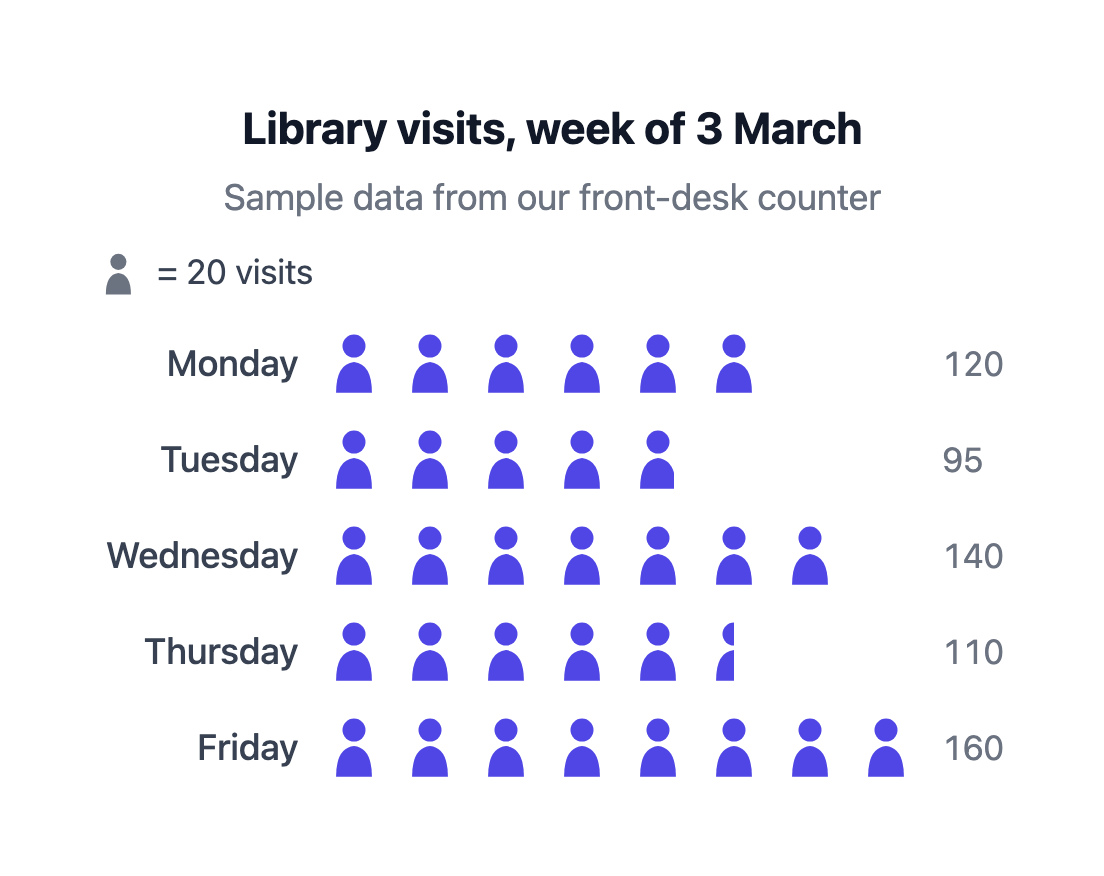
Make a pictograph of visits to Maple Ridge Public Library last week: Monday 120, Tuesday 95, Wednesday 140, Thursday 110, Friday 160. Unit: visits. One icon = 20 visits. Use person icons, keep the weekdays in order, title it 'Library visits, week of 3 March' and add the subtitle 'Sample data from our front-desk counter'.
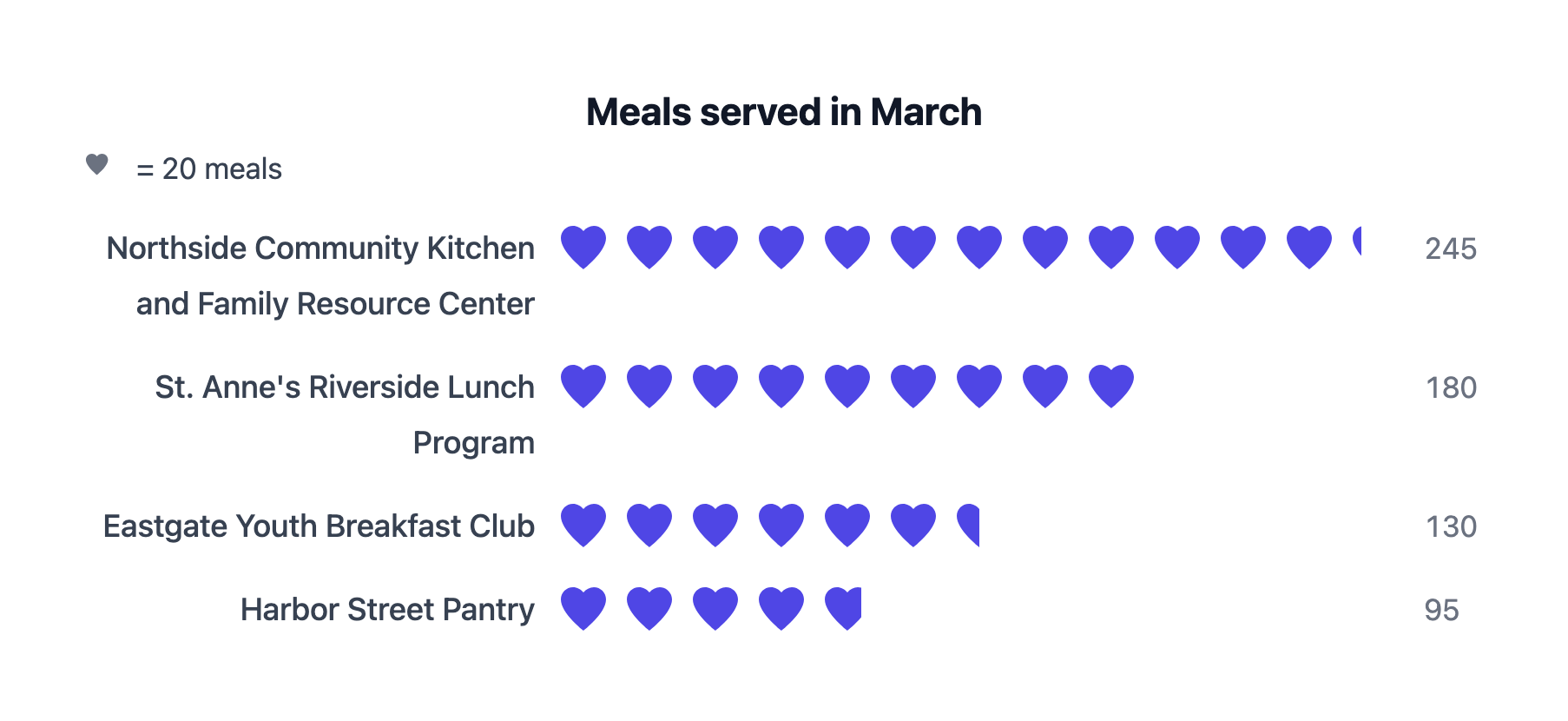
Create a pictograph of meals served by each volunteer kitchen in March. Northside Community Kitchen and Family Resource Center: 245. St. Anne's Riverside Lunch Program: 180. Eastgate Youth Breakfast Club: 130. Harbor Street Pantry: 95. One icon = 20 meals, heart icons.
Long category names and values that leave quarter, half and three-quarter icons. Checks that labels stay intact and every partial icon matches the supplied number.
A chart that shows quantities as rows of repeated icons, where each icon stands for a fixed amount. It is common in classrooms, reports and community updates because the counts are easy to read at a glance.
Pick a round number that gives your largest category about 10 to 20 icons. With values between 90 and 160, for example, one icon for 10 or 20 works well.
The remainder is shown as a partial icon, and the exact value is labeled next to the row, so 245 at 20 per icon appears as 12 full icons and a quarter icon.
There are eight built-in shapes (person, circle, square, star, heart, diamond, triangle and hexagon), and one shape is used for the whole chart. Custom icons such as cups or cars are not available; the category labels say what is being counted.
Preparing your data on this page is free and needs no account. Creating the pictograph requires signing in to Vizify and uses your account's current access and credit rules.
No. This tool makes pictograph charts from numbers. For a single icon or symbol image, the AI icon generator is the better starting point.
It uses only the values you enter. If a category is missing a value, Vizify asks for it instead of filling in an estimate.
No. A pictograph counts things, so values must be zero or more. For gains and losses or comparisons around zero, a bar chart is clearer.
Three to eight categories usually read best. With many categories or very large counts, rows get long; raise the value per icon or split the data into two charts.
Yes. Each category can have its own color, and you can ask for a title, subtitle or different icon size in the conversation after the chart is created.
You can use whatever sharing and export options the Vizify App offers for MakeCharts artifacts. This page does not promise a specific file format.
List each category with one number, in the order you want the rows to appear, and name the unit being counted, such as visits, votes or meals. Then decide what one icon represents. Choose a round number that keeps the longest row to roughly 10 to 20 icons; very small values per icon produce rows too long to read.
Vizify builds the chart with MakeCharts’ native pictograph type, not an image model, so the icons are counted from your values. Remainders appear as partial icons, value labels show the exact number for each row, and the legend states the value of one icon. If the pictograph type is ever unavailable, Vizify tells you rather than switching to a different chart.
Pictographs are for counts people can picture. For negative values, percentages that must add up, or trends over many periods, use the bar chart maker, pie chart maker or line chart maker instead.