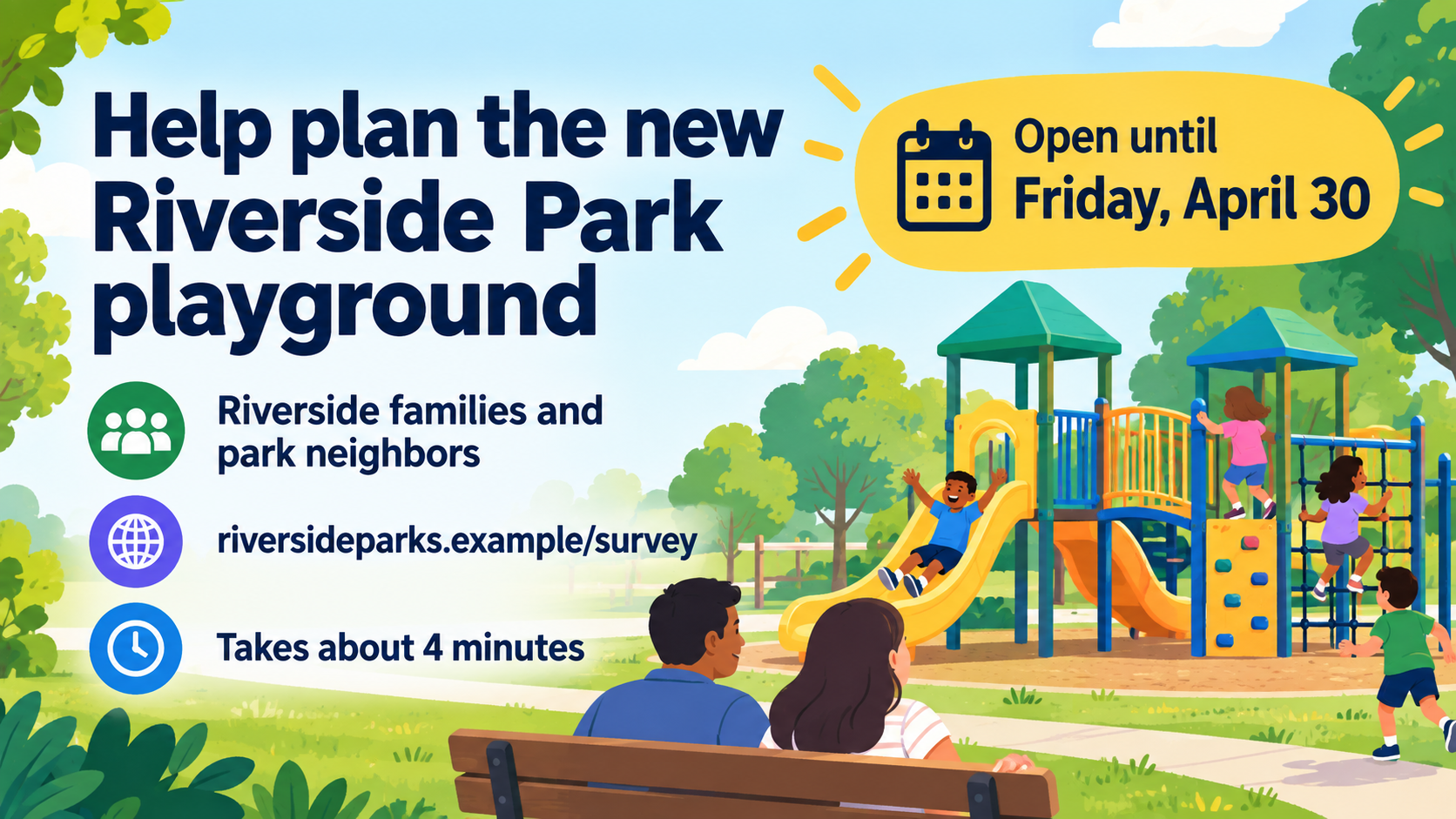
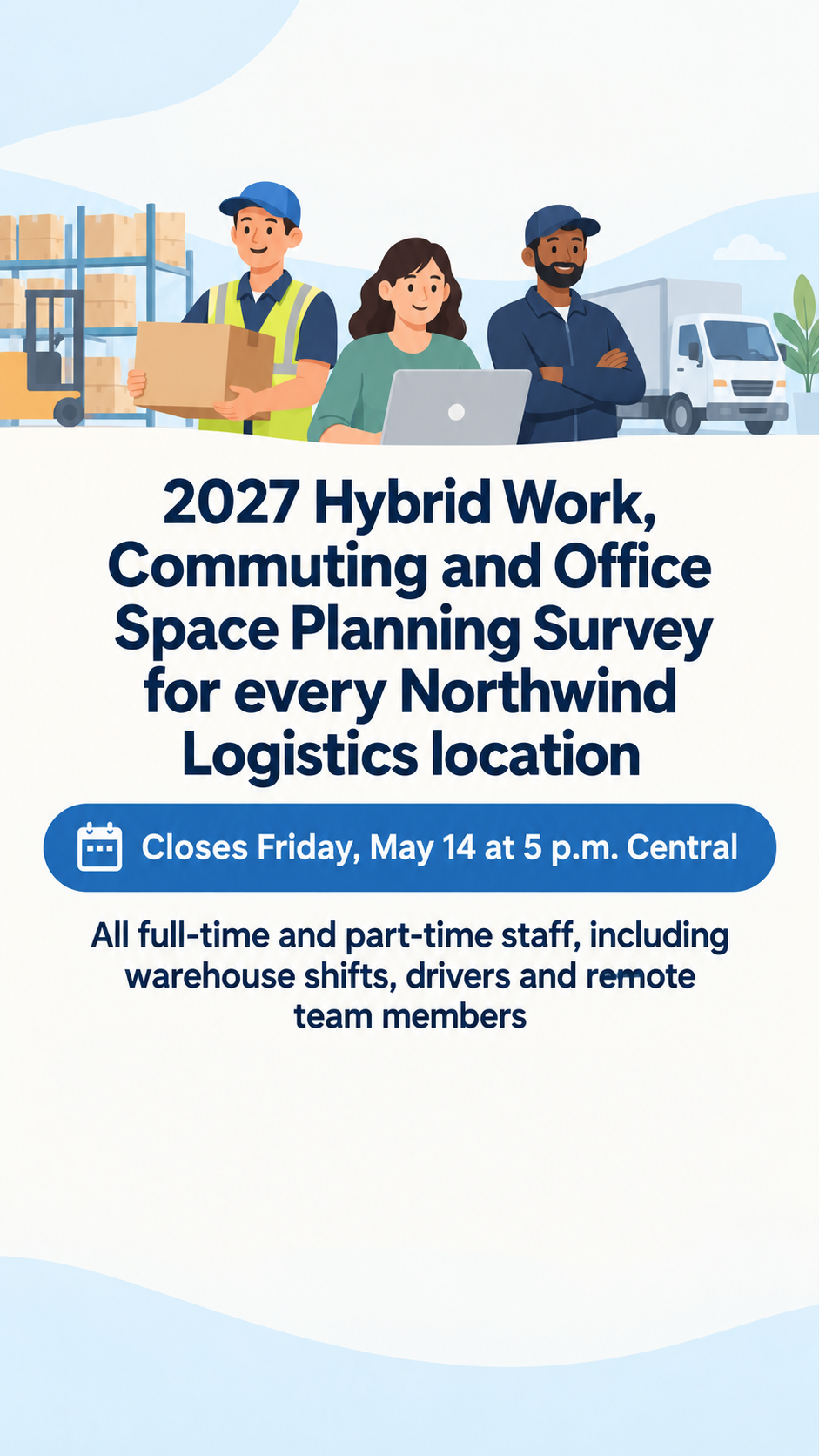
One generated survey invitation image with the topic as the headline, the closing date given equal weight, the audience line, and optional response and time details, as a wide banner, a square post or a Story. Check the deadline and link text before sharing.
Long workplace survey with a time-zone deadline and no link or duration, as a Story
Survey topic
2027 Hybrid Work, Commuting and Office Space Planning Survey for every Northwind Logistics location
Who should respond
All full-time and part-time staff, including warehouse shifts, drivers and remote team members
Closing date
Closes Friday, May 14 at 5 p.m. Central
Where to respond (optional)
Left empty
Time to complete (optional)
Left empty
A long topic and audience with a time-zone deadline and no link or duration, in a vertical Story. Checks that the deadline keeps its time zone, the link-sticker area stays empty, and no anonymity or prize claim is added.
Same task, three directions
Pick a direction to start from.
01
Clipboard and checkmarks
A clean layout with a simple clipboard icon and one accent color, which works for most organizations and newsletters.
02
Community voices
An illustration of the audience with speech bubbles, for neighborhood, school and member surveys.
03
Countdown deadline
The closing date becomes a large calendar-page graphic, for last-call reminders in the final days of a survey.
What the template keeps
The parts that stay consistent.
01
Topic and deadline first
Request the topic and closing date as the main visual elements; inspect their hierarchy and legibility in the actual image.
02
No invented promises
Instruct the generator to use only supplied incentive and privacy claims; inspect the image for invented promises.
03
Space for your link
Request empty space for a link sticker in the Story layout. Inspect the actual space, then add the real sticker in your social app.
How to use it
From details to a result.
01
Name the survey topic
Write it as an invitation people can act on, such as help plan or tell us about.
02
Say who should respond and by when
The audience and closing date sit right under the topic, so people know at once if it is for them.
03
Add where to respond
Optional. A short address or link-in-bio note, plus how long it takes if you know.
04
Pick the format, review and generate
Wide for banners and newsletters, square for feeds, vertical for Stories. Nothing runs until you send it in Vizify.
Output boundaries
What to check before you use it.
Vizify does not create, host or collect the survey. The image points people to your own survey link.
It cannot create a working link or QR code; the response line is text on the image.
Generated text can contain mistakes. Check the closing date, time zone and web address before sharing.
Format and safe-area instructions are requests, not guaranteed proportions, pixels or margins. Inspect the actual image, all text and the crop for your destination before sharing.
Vizify does not post or schedule the image; publish it from your own accounts.
QuestionsCan Vizify collect the survey responses?+
No. This template makes the invitation image only. Build and host the survey in your own form or survey tool and point people to it.
Should the survey banner say responses are anonymous?+
Use an anonymity or privacy statement only if it is true for your survey and you supply its exact wording. The brief instructs the generator not to invent such claims; check the actual image before sharing.
Which format should I choose?+
Choose wide for banners, square for feed posts or vertical for Stories. In a Story, request empty space for your own link sticker, check the actual layout and add the working sticker in the social app yourself.
Can I make a reminder version near the deadline?+
Yes. Run the template again with the countdown direction and the same closing date so the reminder matches the original.