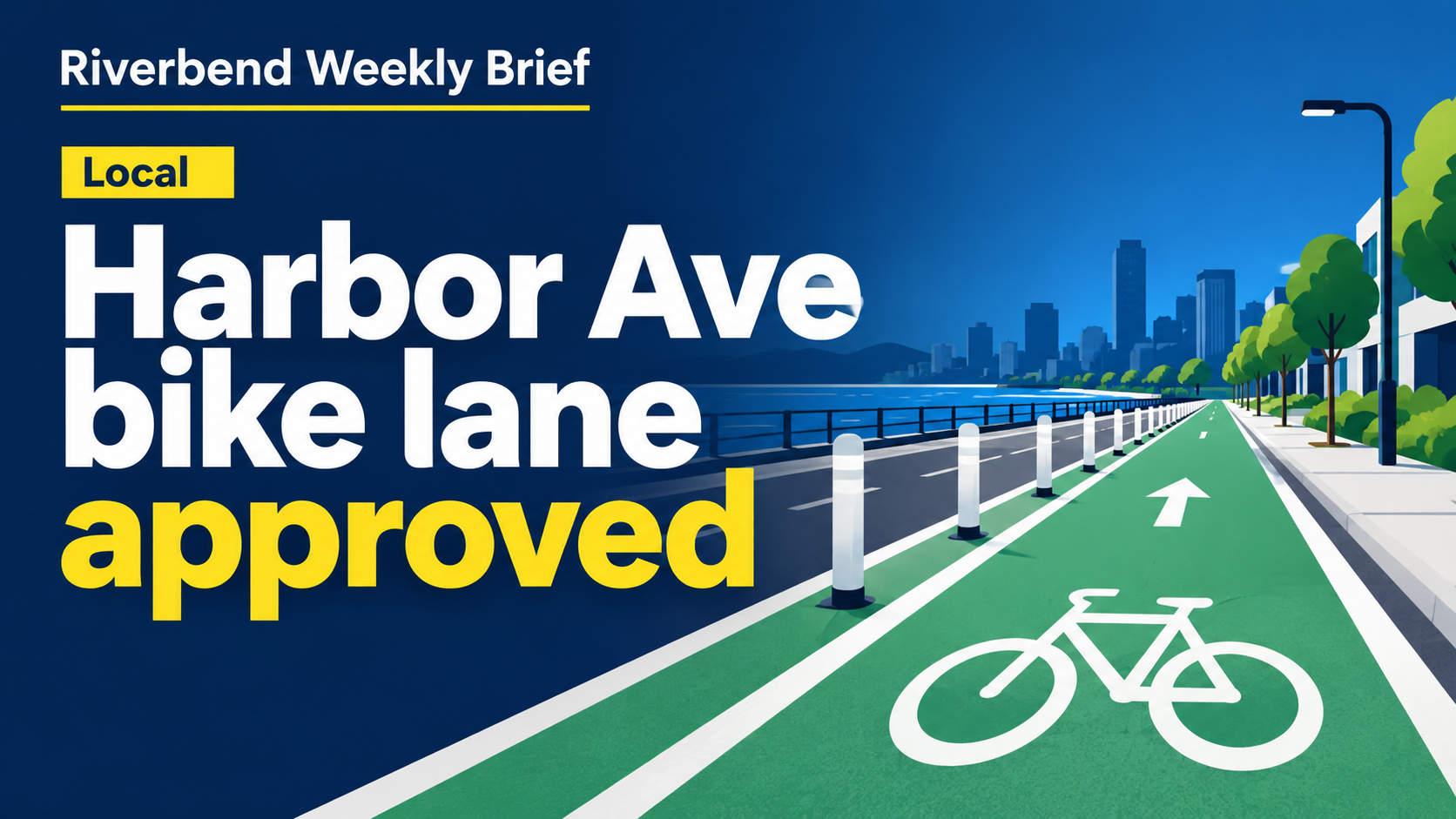
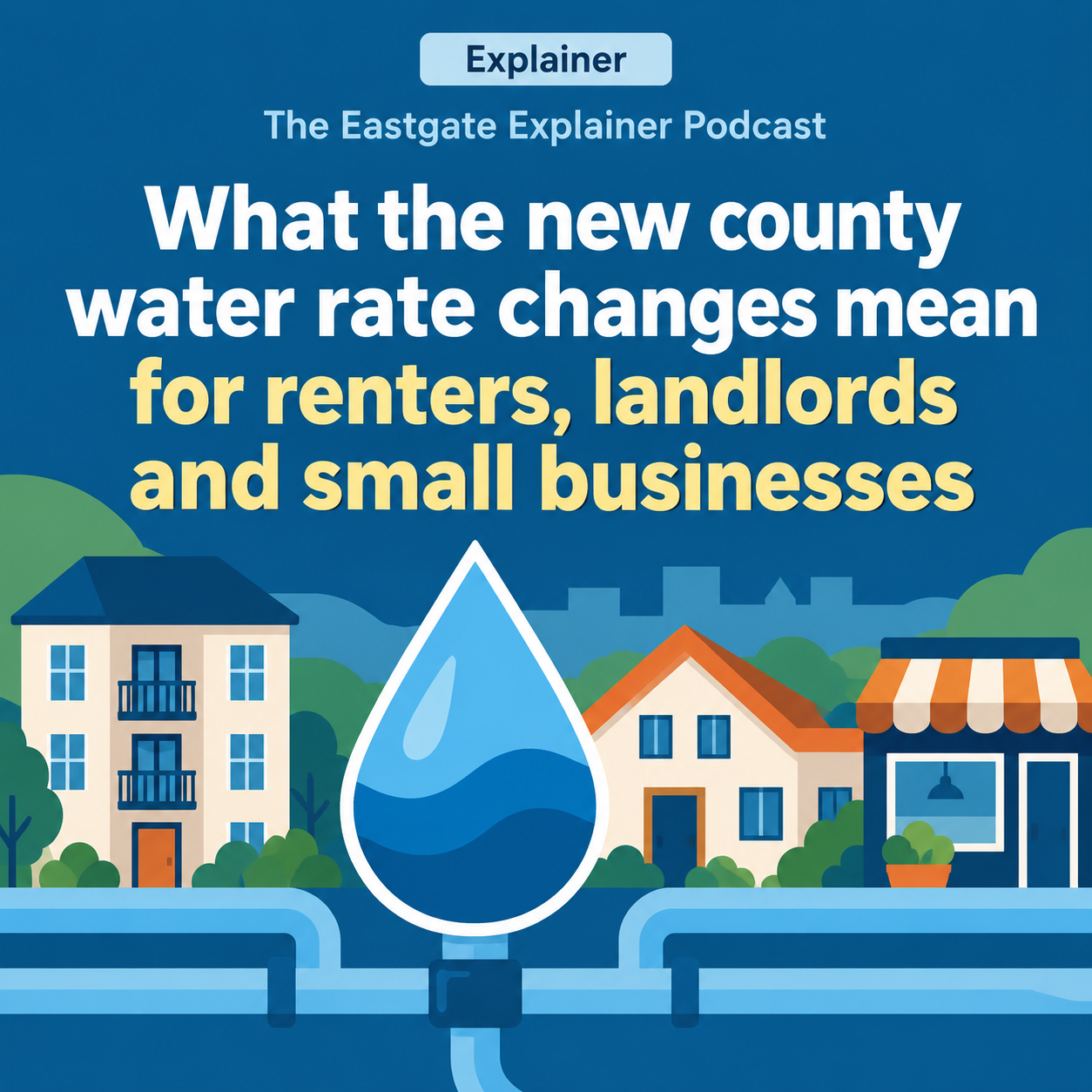
News thumbnail with your verified headline and an illustrative visual.
Make a cover image for a news story, video or newsletter segment from your verified headline and series name, with an illustrative visual rather than a staged news photo.
One generated thumbnail with your verified headline in large type, your outlet or series name, an optional section label, and an illustrative, clearly designed visual of the topic. It never imitates a news photograph; check the headline word for word.
Long explainer headline with a section label and no style, as a square
What the story is about
County water rates are changing next year, and the story explains what the new tiers mean for different households and businesses
Verified headline, as short as possible
What the new county water rate changes mean for renters, landlords and small businesses
Outlet, show or series name
The Eastgate Explainer Podcast
Section label (optional)
Explainer
Brand colors or visual style (optional)
Left empty
An 87-character headline with a section label and no style, in the square format. Checks that no words are cut without approval, that the visual stays illustrative instead of showing real people, and that no date or figure is added.
Same task, three directions
Pick a direction to start from.
01
Bold headline bar
A solid color bar holds the headline over a simple illustrated background, the most legible option at small sizes.
02
Illustrated explainer
A flat, diagram-like illustration of the topic with the headline above it, for explainers and analysis pieces.
03
Podcast or newsletter cover
A square layout with the series name as a strong masthead and the episode headline beneath, for audio and email segments.
What the template keeps
The parts that stay consistent.
01
Illustration, not evidence
The visual is clearly designed and never passes as a news photograph.
02
Your headline, word for word
The approved headline is not shortened or reworded without your approval.
03
Clear corners
Space is kept where video players and feeds place overlays.
How to use it
From details to a result.
01
Describe the story
A sentence about the topic steers the illustration. It does not appear on the image.
02
Enter the verified headline
Use the headline your editor has approved. Short headlines read best at thumbnail size.
03
Add the outlet and an optional label
The outlet or series name appears as text; a section label is optional.
04
Pick the format, review and generate
Wide for video and articles, square for podcasts and feeds, vertical for Stories. Nothing runs until you send it.
Output boundaries
What to check before you use it.
It does not produce photographs of real events or people. Use your own licensed news photos where a real image is needed.
Vizify does not verify news. You are responsible for the headline's accuracy.
Generated text can contain mistakes. Check the headline, the outlet name and the label word for word.
The formats are aspect-ratio directions, not the exact pixel sizes a video platform or CMS asks for.
Real outlet logos are not reproduced; the outlet name appears as plain text.
QuestionsCan it make a news thumbnail with a photo of the person in the story?+
No. It never shows real people's likenesses or staged photos of real events. The visual is an illustration of the topic.
Where does the headline come from?+
From you. Enter the headline your editor has verified. If it is long, the template keeps every word and suggests a shorter version for you to approve.
What size is a news thumbnail?+
Choose the wide direction for video and article thumbnails. It is a proportion, not an exact pixel size, so resize it to your platform's requirements afterward.
Can I use it for a podcast or newsletter episode?+
Yes. Choose the square format and put the show or newsletter name in the outlet field.