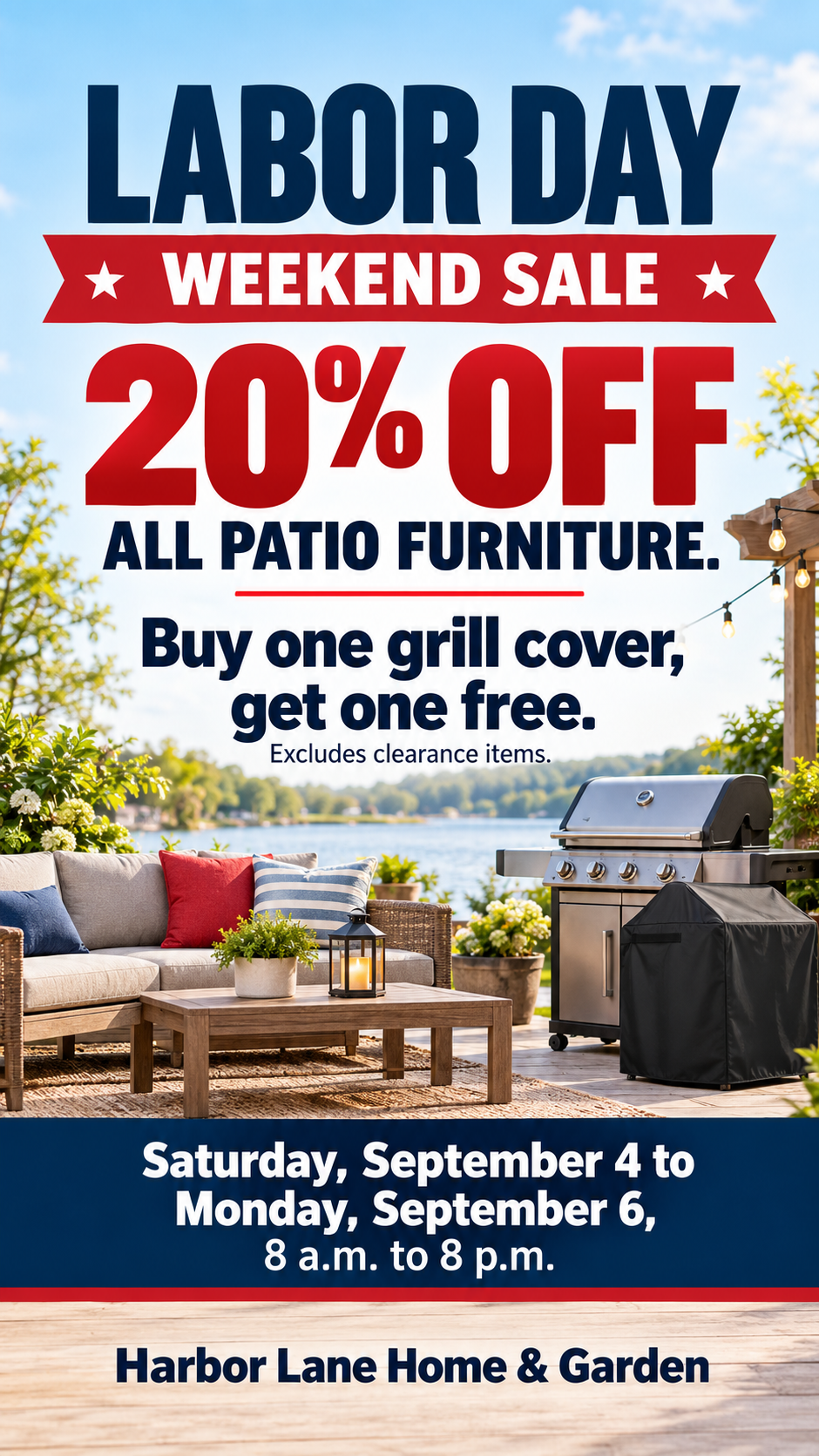
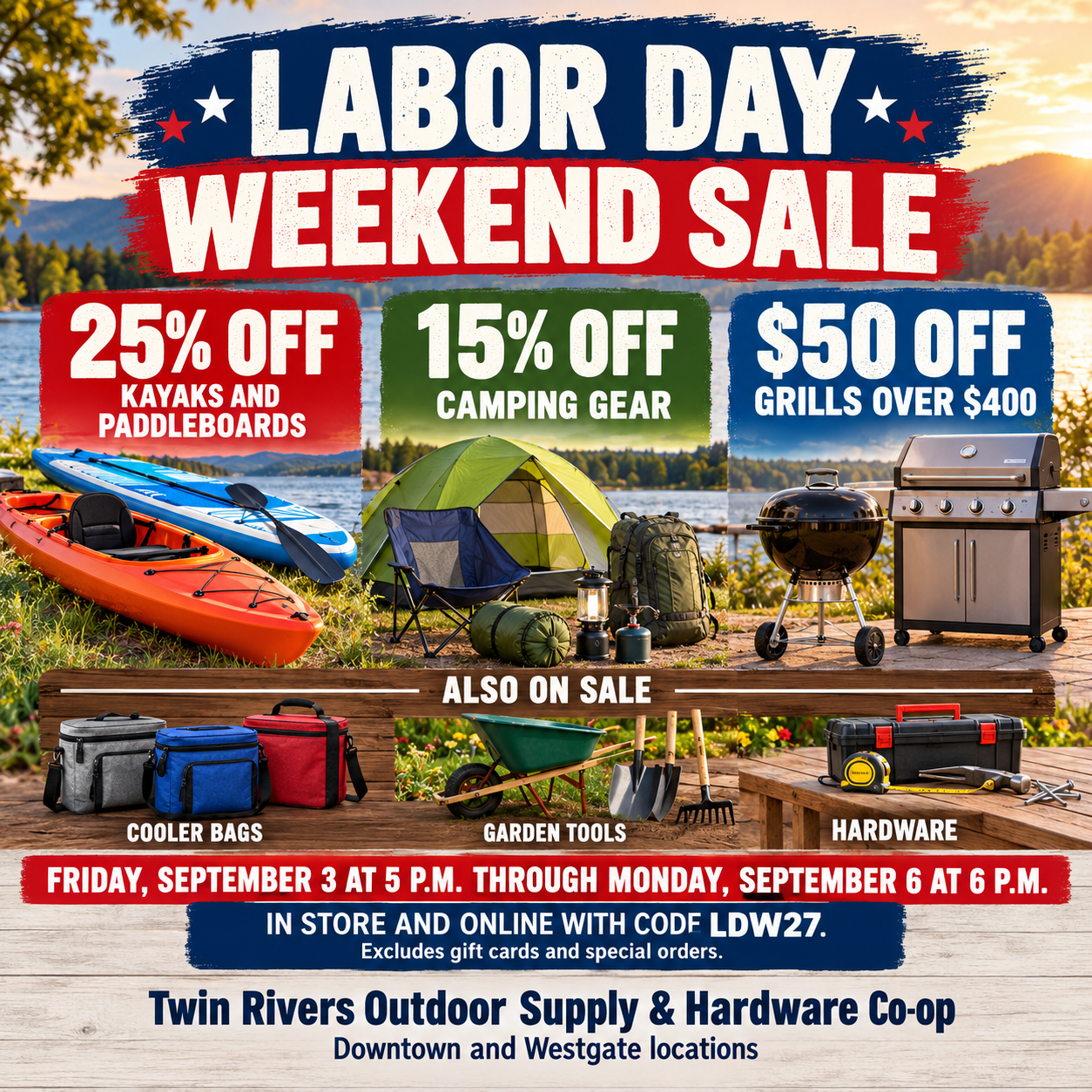
Labor Day weekend sale flyer with your offer and dates up front.
Promote a Labor Day weekend sale with one flyer where your exact offer and sale dates lead, followed by what is on sale and your store name. Add a product photo if you like.
One generated sale flyer with your offer as the largest element, the sale dates next, then the products and store name, with light end-of-summer cues. Discounts, codes and exclusions appear only as you type them; check each figure before it goes up.
Kayaks, paddleboards, camping gear, charcoal and gas grills, cooler bags, garden tools and hardware
Exact offer and terms
Save 15% on camping gear, 25% on kayaks and paddleboards, and $50 off grills over $400. In store and online with code LDW27. Excludes gift cards and special orders.
Sale dates and hours
Friday, September 3 at 5 p.m. through Monday, September 6 at 6 p.m.
Three different discounts, a promo code, exclusions and two locations, with no reference photo. Checks that each discount stays with its own products, the code is spelled exactly, and nothing grows into a bigger claim than supplied.
Same task, three directions
Pick a direction to start from.
01
End-of-summer sunshine
Warm late-afternoon light on a picnic or patio scene, with the offer on a bold sign. Suits garden, home and grocery stores.
02
Big price tag
The offer sits inside an oversized tag shape in red, white and navy, for window displays and counter cards.
03
Clean product feature
One product on a light background with plenty of space, for stores featuring a hero item or using a product photo.
What the template keeps
The parts that stay consistent.
01
Offer first
The deal is the biggest thing on the flyer, with the dates right behind it.
02
Discounts stay with their products
Tiered offers keep each figure beside the items it applies to.
03
Light holiday cues
End-of-summer and stars-and-stripes accents support the sale without crowding it.
How to use it
From details to a result.
01
Name the store and what is on sale
Keep the product description short. Add a photo if one real item should be featured.
02
Type the exact offer
Include percentages, dollar amounts, codes and exclusions exactly as you will honor them.
03
Add the sale dates and hours
Weekend sales often start or end at specific times, so include them.
04
Review, generate and check every number
The brief opens in Vizify before it runs. Compare each discount, code and date with your pricing before posting.
Output boundaries
What to check before you use it.
Generated text can alter numbers. Check every percentage, price, code and date; a wrong figure on a sale flyer is a pricing problem.
It does not calculate discounts, create coupon codes or check that an offer is legal to run.
Without a product photo, products are generic concepts; with one, labels and small details can still drift.
The result is one tall or square image, not a print-ready file or a set of matching sizes for every channel.
Long legal terms do not fit well; keep the key exclusions on the flyer and the full terms on your website.
QuestionsCan I use the same Labor Day weekend flyer in store and on social media?+
Each request makes one image. Use the tall direction for windows and counters and square for social, generating each separately from the same details.
Will it suggest a discount for me?+
No. It only shows the offer you type. If the offer field is empty or unclear, it asks rather than inventing one.
How much fine print can I include?+
One or two short lines of exclusions read well. Longer terms become too small, so link to them on your website instead.
What if I just want a holiday greeting, not a sale?+
A Labor Day greeting post fits that better, since this flyer is built around an offer and dates.
Can I feature my actual product?+
Upload one clear product photo. The flyer uses it as the featured item, but check the label and details, since generation can change them slightly.