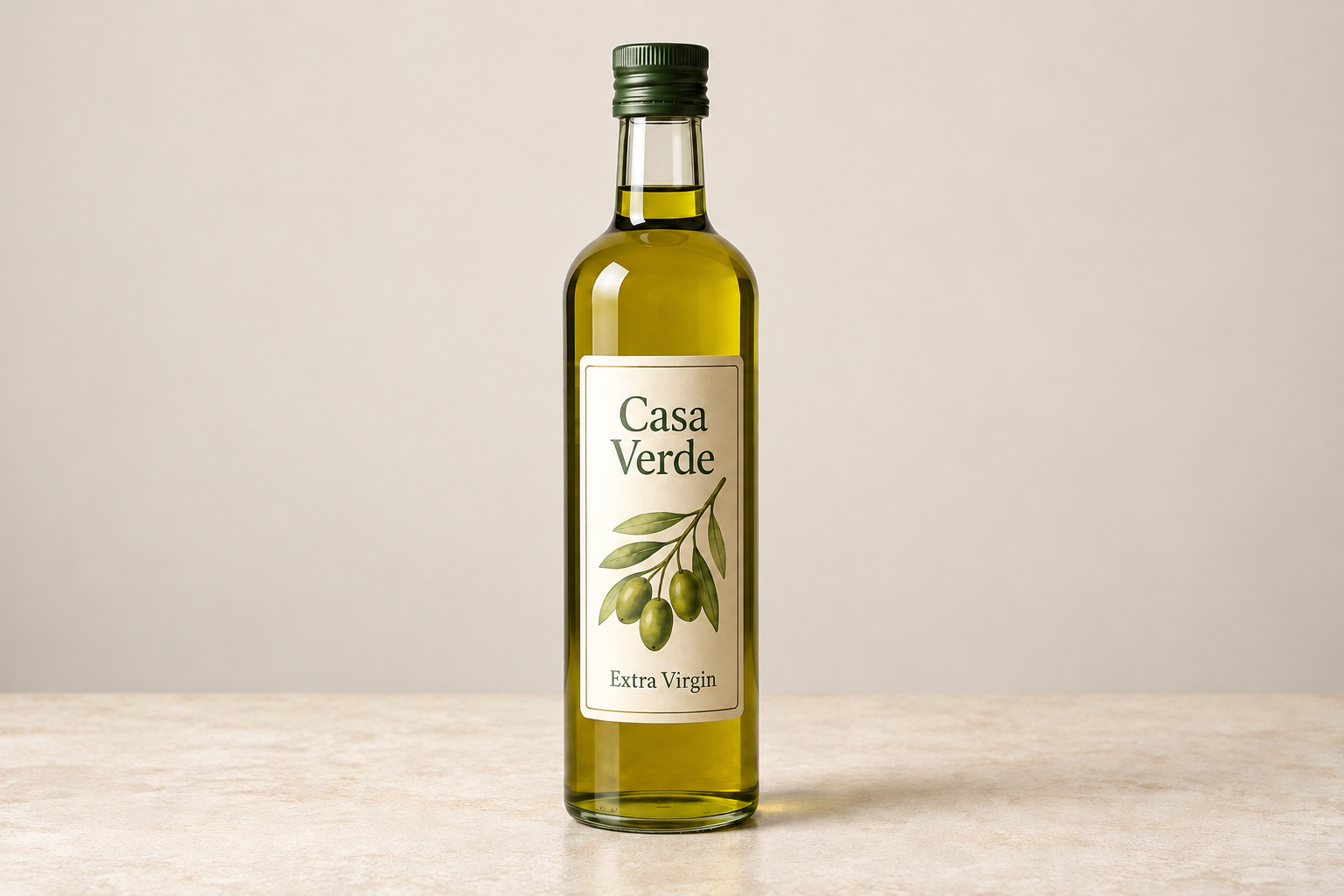
Source image uploaded on this page
Details to recover and elements to preserve
Output resolution and enhancement focus
Upload the source image, describe what should look sharper and what must stay unchanged, then use this AI image upscaler in Vizify to upscale, enlarge, and enhance it into a reviewable 2K or 4K artifact.
PNG, JPEG or WebP; one source image up to 10 MB. Upload the source and choose 2K or 4K; the default is 2K. These are resolution targets, not exact scale factors. Review dimensions and reconstructed detail in the result.
Source image uploaded on this page
Details to recover and elements to preserve
Output resolution and enhancement focus
One enhanced image artifact
A higher-resolution generative reconstruction
Reusable enhancement instructions
The AI image upscaler can reconstruct plausible detail while enlarging an image instead of only stretching the existing pixels.
Choose a target resolution and let Vizify select an image-capable model that supports the requested edit and output size.
Name faces, product shapes, logos, text, colors, or composition that should remain stable during the upscale.
Vizify returns an image artifact for inspection because recovered texture and fine detail can differ from the source.
It enlarges an image and uses an image-editing model to reconstruct plausible detail, reduce visible softness, and improve perceived clarity. This is a generative enhancement, not a forensic recovery of information missing from the source.
Upload the source and choose 2K or 4K; the default is 2K. These are resolution targets, not exact scale factors. Review dimensions and reconstructed detail in the result.
Yes, when a compatible model can produce 4K output. The tool treats 4K as a generative target, so it may redraw texture and edges rather than perform a mathematically exact format or pixel conversion.
The jobs overlap. An image upscaler primarily increases output dimensions, while an image enhancer may also reduce blur or noise, restore texture, and improve local detail. This workflow combines both when the brief calls for it.
Tell Vizify exactly what must remain unchanged. The Agent can use that constraint and inspect the result, but small faces, lettering, logos, and fine geometry may still be reconstructed imperfectly by a generative model.
Yes. Ask for deblurring, noise reduction, or gentle restoration while protecting identity, age, texture, and composition. Severely damaged or tiny sources leave more room for model interpretation.
Vizify validates the generated bytes and stores the artifact with its detected MIME type and matching filename extension. The page does not promise a specific format before generation.
Preparing the request is free. Running an image generation or edit needs sign-in; a free account includes a small shared image allowance paid from sign-up credits. More requests need Pro or a credit pack.
No. An AI upscale can create convincing new pixels, but those pixels are model-generated estimates. Keep the original file and compare important text, identity, product details, and edges before publishing the result.
A plain resize stretches existing pixels and gets softer as it grows. This AI image upscaler instead asks an image-editing model to redraw the enlarged area with plausible new detail, which looks sharper but is a reconstruction rather than a magnified copy of the original data.
It enlarges an image by predicting detail that wasn't captured, rather than stretching pixels. The result looks sharper but is a reconstruction, which is why you should compare faces, text and logos with the original.
One PNG, JPEG or WebP image up to 10 MB per request.
Upload the source image and write a short brief that identifies the subject, the weaknesses you want corrected, and the details that must stay unchanged. Choose the output resolution and enhancement focus, then continue in Vizify. The App restores the prepared image and task before the Agent inspects the input, chooses a compatible image-editing model, runs the enhancement, and returns one reviewable artifact.
Use 2K for lighter web and presentation assets when a moderate image enlargement is enough. Choose 4K for larger displays, detailed crops, or source files that need more room for downstream layout work. Unlike a basic resize operation, this AI image upscaler can also act as an AI image enhancer by reconstructing texture, reducing softness, and improving perceived detail.
Upscaler AI image workflows can make a small or blurry source look more convincing, but they cannot recover ground truth that was never captured. Faces, logos, lettering, repeating patterns, and product geometry deserve a close comparison with the original. Describe those constraints explicitly, and keep the source file alongside the enhanced result.
Upscale this product photo of a glass olive oil bottle to 4K for a large website banner. Keep the label text 'Casa Verde Extra Virgin' readable and unchanged, keep the reflections on the glass, and reduce the JPEG blockiness in the background.
Please attach the original thumbnail. I can upscale it, but unreadable menu prices cannot be reliably recovered from missing detail. Do you have a larger original or the confirmed prices for a faithful reconstruction?
Upscale this 200-pixel thumbnail of a restaurant menu so I can read the prices.
Checks that the reply warns that unreadable prices can't be recovered, only redrawn, and asks for a better source rather than presenting reconstructed prices as real.