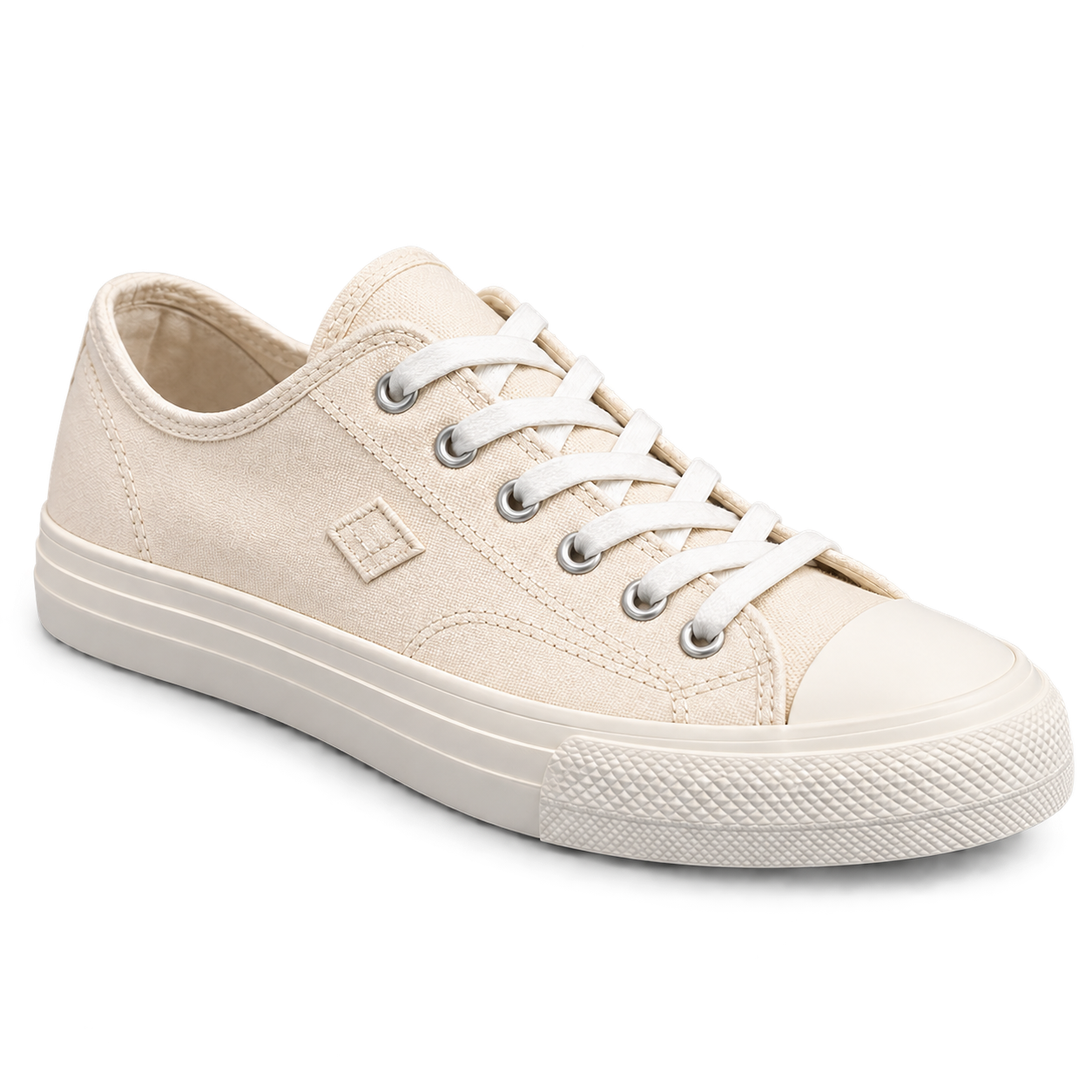
One source image uploaded on this page
Optional subject and edge-protection details
Transparent or white background choice
Upload one source image, choose a transparent or white background, and tell Vizify which edges, text, shadows, or reflections must remain intact.
PNG, JPEG or WebP; one source image up to 10 MB.
One source image uploaded on this page
Optional subject and edge-protection details
Transparent or white background choice
One background-edited image artifact
An isolated subject on the requested background
Reusable edit instructions
Request a reusable transparent cutout or a clean white background without exposing model or provider settings.
Identify hair, fur, accessories, product parts, shadows, reflections, logos, or typography that the edit should preserve.
Vizify can select a reference-capable image-editing model suited to semantic subject isolation while keeping routing details out of the form.
Review glass, smoke, flyaway hair, soft shadows, and reflections because generative editing can reconstruct them rather than preserve every pixel.
Upload one source image, choose transparent or white, and optionally describe the subject details that must remain. Continue in Vizify to review and send the prepared edit — this covers how to remove background from image files without separate masking software.
You can request transparency. Vizify should ask for PNG alpha and inspect the artifact when possible, but a generative image model does not guarantee that every result contains a real alpha channel.
Yes. Choose White and identify any product geometry, label, reflection, or contact shadow that should remain unchanged.
Clear product photos, portraits, animals, logos, and graphics work best when the subject is distinguishable from the background. Strong overlap, motion blur, or very low resolution makes the boundary more ambiguous.
Ask for those elements explicitly and inspect the result closely. A generative model may reconstruct fine hair, fur, transparency, reflections, smoke, and soft shadows instead of producing a pixel-perfect mask.
The instructions tell the model to preserve the subject, but small details can change. Compare identity, logos, labels, edges, product geometry, accessories, and textures with the original.
The Site keeps the selected image in browser task storage. After sign-in, the App restores the task and performs the authenticated durable upload before execution.
Vizify validates the generated bytes and stores the artifact with its detected MIME type and matching extension. For transparency, confirm that the delivered file actually contains alpha data.
Not always. When you ask AI to remove background from an image, it runs as a semantic image edit rather than a deterministic clipping-path or segmentation service, so difficult edges and semi-transparent materials may need another pass.
No. Each request takes one image and returns one result. For a product catalog, run each photo separately with the same instructions so the results match.
Preparing the edit is free. Running it needs sign-in: a free account includes a small allowance of image edits paid from its sign-up credits, and more need Pro or a credit pack.
One PNG, JPEG or WebP image up to 10 MB per request.
Use Transparent when you need a reusable cutout for product layouts, profile graphics, presentations, or compositing. Choose White for a clean catalog or marketplace image. The selection is carried into Vizify as part of the editing request; it is not a provider setting.
The source image already reveals the subject type, so you do not need to classify it. Instead, name the details that matter: identity, hair, fur, logos, labels, typography, product geometry, glass, reflections, or natural contact shadows.
This workflow uses semantic generative editing, not deterministic alpha matting. Inspect difficult edges at full size and compare them with the original. When transparency matters, verify that the delivered file contains a real alpha channel rather than a white or checkerboard-style rendered background.
Remove the background from this photo of a canvas sneaker and make it transparent. Keep the laces, the rubber toe cap, the stitched side logo and a soft contact shadow under the sole.
Should the trade-show banner remain with the team, or should I remove it with the rest of the background?
Remove the background from this photo of our team at the trade show booth. Not sure whether the banner behind us should stay.
Checks that the reply asks whether the booth banner counts as background and confirms every person stays, instead of silently cutting out only some subjects.