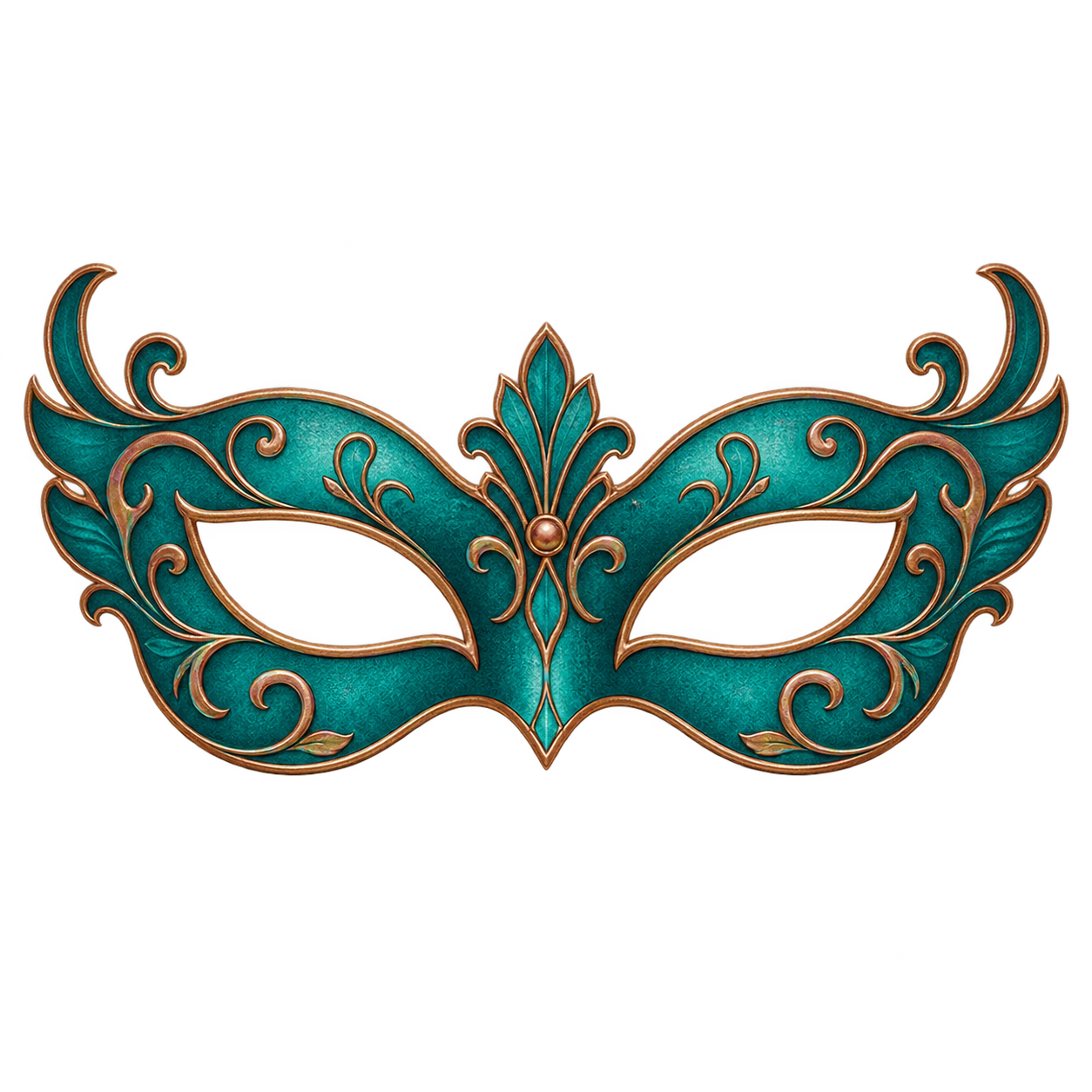
Generate a standalone decorative mask-shaped overlay; alignment and compositing onto a photo happen separately. Request one transparent static image from your description and optional reference, then inspect the finished file.
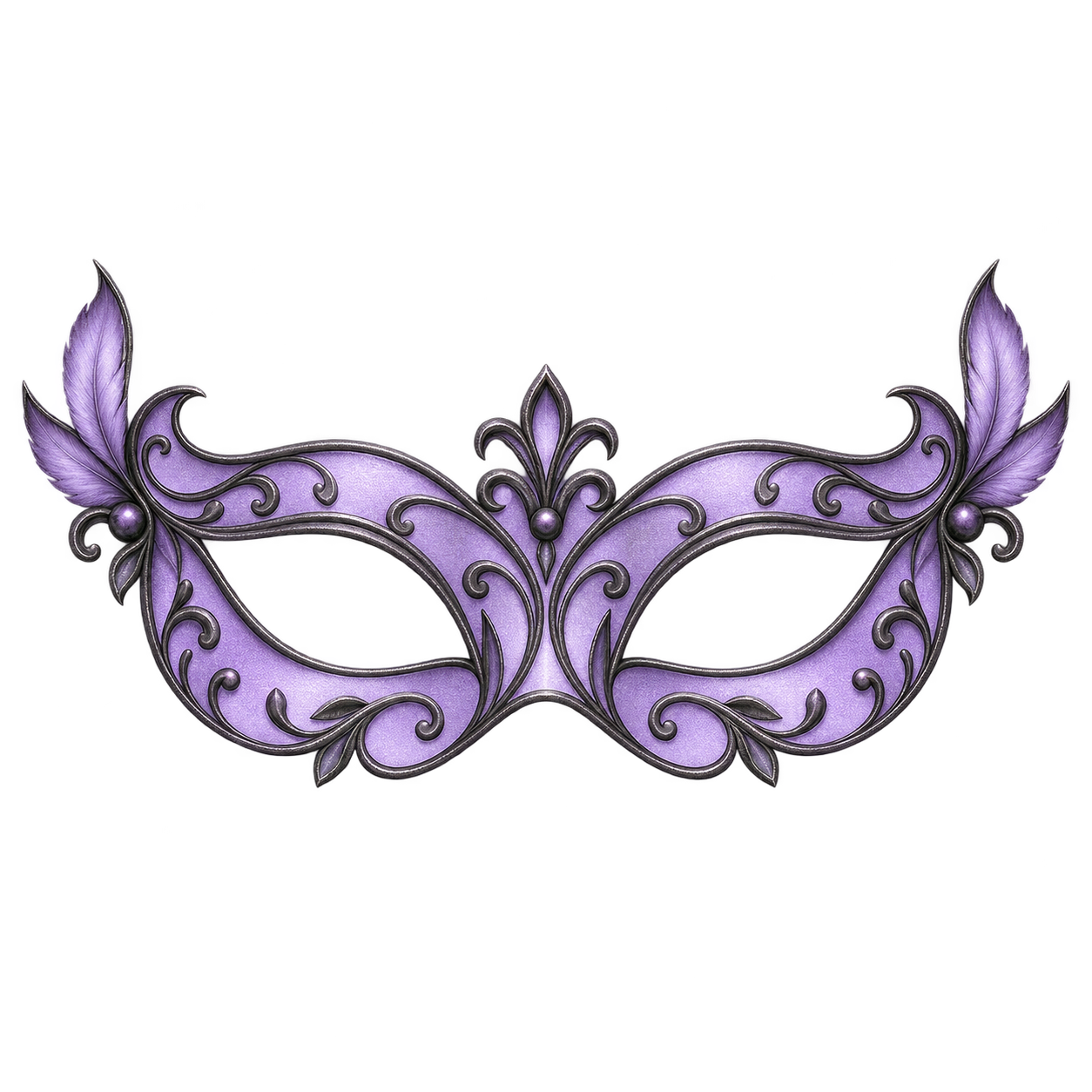
One original lilac decorative eye-mask overlay with charcoal edges and two short feather-like side tips
Pose, style and details to keep
Center the standalone asset with breathing room; keep the exterior and all openings transparent. No portrait or text.
This image illustrates the fixed brief. Inspect the transparent openings and complete outer edge; placement onto a photo is a separate task.
Same task, three directions
Pick a direction to start from.
01
Simple continuous outline
A clean outline leaves more empty space for later placement.
02
Small attached accents
A few attached shapes add detail without filling the center.
03
Muted color treatment
A restrained palette can make the decoration easier to pair with a photo.
What the template keeps
The parts that stay consistent.
01
Your defining details
The brief carries your features and palette. Compare the result because generative details may drift.
02
Space around the artwork
The square composition leaves room for the complete outline; verify it in the actual file.
How to use it
From details to a result.
01
Define the visual subject
Describe the shape, features, materials and palette; add one optional reference if useful.
02
Choose the pose or layout
Name details to retain and keep the complete silhouette inside the composition.
03
Review and send in Vizify
The prepared brief and reference open in Vizify. Sign in, review them and send to begin generation.
04
Check the output
Inspect the image on light and dark surfaces, including actual transparency and small-size readability.
Output boundaries
What to check before you use it.
Real alpha is requested but must be checked. White fill, painted checkerboards and stray background pixels do not count as transparency.
References guide new artwork; exact likeness and unchanged source pixels are not guaranteed.
One request returns one static raster image. Square framing does not guarantee exact pixels, file size or a platform-ready export.
This is a standalone decorative asset, not automatic photo framing, exact masking, alignment or compositing. A separate editor is needed to combine it with an image.
QuestionsDoes this put a border or mask onto my existing avatar?+
No. It creates one standalone decorative image. Align and composite it onto your avatar in a separate editor; this template does not preserve or automatically frame a source photo.
Can I add a reference?+
Yes, one PNG, JPEG or WebP up to 10 MB. Describe the features it should guide and compare the new image with the reference.
Is the background really transparent?+
The brief requests real alpha from a compatible model. Inspect the delivered PNG over colored surfaces; a white fill or painted checkerboard is not transparency.
Will my result look exactly like the examples?+
No. The examples show a visual direction. Your result can vary with the model, your description, reference images and settings. Check the character details and likeness where relevant, along with the actual transparency and fine edges. The same brief does not guarantee an identical image.