A subject brief and up to eight optional references
Subject, expression, colors and small-display priorities
Optional visual preferences; remove any you do not need
Describe an original subject and choose a face-focused portrait or a simple icon silhouette. Keep ears, hair and accessories away from the frame edges, then review one static transparent image.
Review your brief and references in Vizify before generation. Preferences guide new artwork; they are not exact export settings.
A subject brief and up to eight optional references
Subject, expression, colors and small-display priorities
Optional visual preferences; remove any you do not need
One static Discord-oriented avatar illustration
An image to inspect for details, complete edges and real alpha
A clear silhouette and space around the head make the image easier to use where a platform displays a circle. This preference guides composition; it does not apply a circle mask or validate Discord export rules.
Shrink your view and check whether the face or icon still reads. Ears, glasses and accessories should not depend on tiny detail. Compare reference cues and inspect the actual alpha around the silhouette.
This page prepares your request. Vizify opens it for review, then uploads selected images after sign-in when you send the task. Generation uses credits; preparation does not start a paid image job.
Create one original static square Discord profile picture with a clear face or icon silhouette. An original mint-green robot with a cream faceplate, amber oval eyes and two short copper antennae. Center a head-and-shoulders portrait with room around hair, ears and accessories; keep all named features visible. No text. Use real native alpha outside the silhouette. No scene, letters, logo, watermark or collage.
Example image of this brief. Inspect the actual alpha and complete silhouette.
Create one original static square Discord profile picture with a clear face or icon silhouette. An original brushed-steel robot with charcoal panels, round amber eye lenses and a small violet neck joint. Center a head-and-shoulders portrait with room around hair, ears and accessories; keep all named features visible. No text. Use real native alpha outside the silhouette. No scene, letters, logo, watermark or collage.
Example image of this brief. Inspect the actual alpha and complete silhouette.
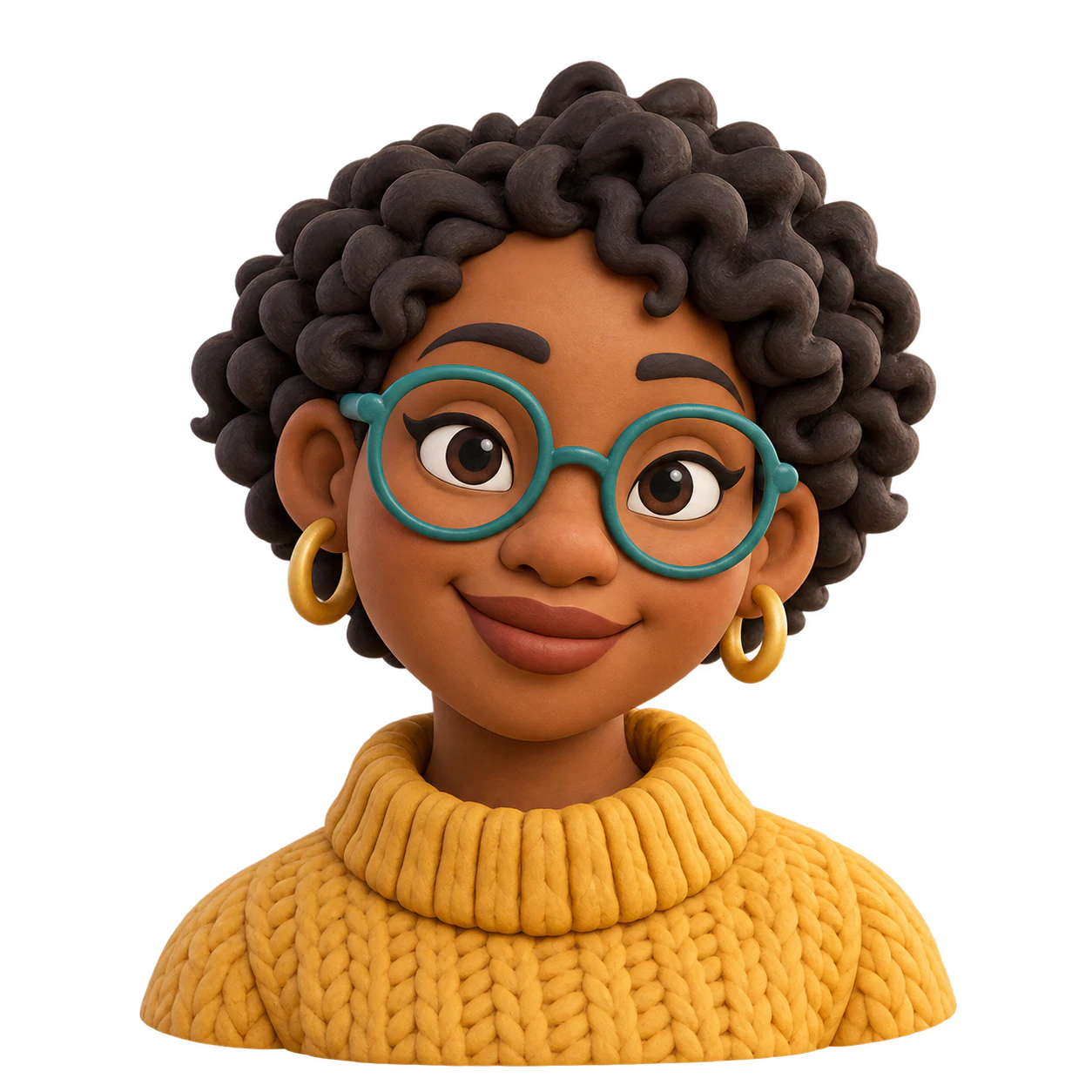
Soft clay, toy surfaces and rendered lighting create a dimensional appearance in one flat image.
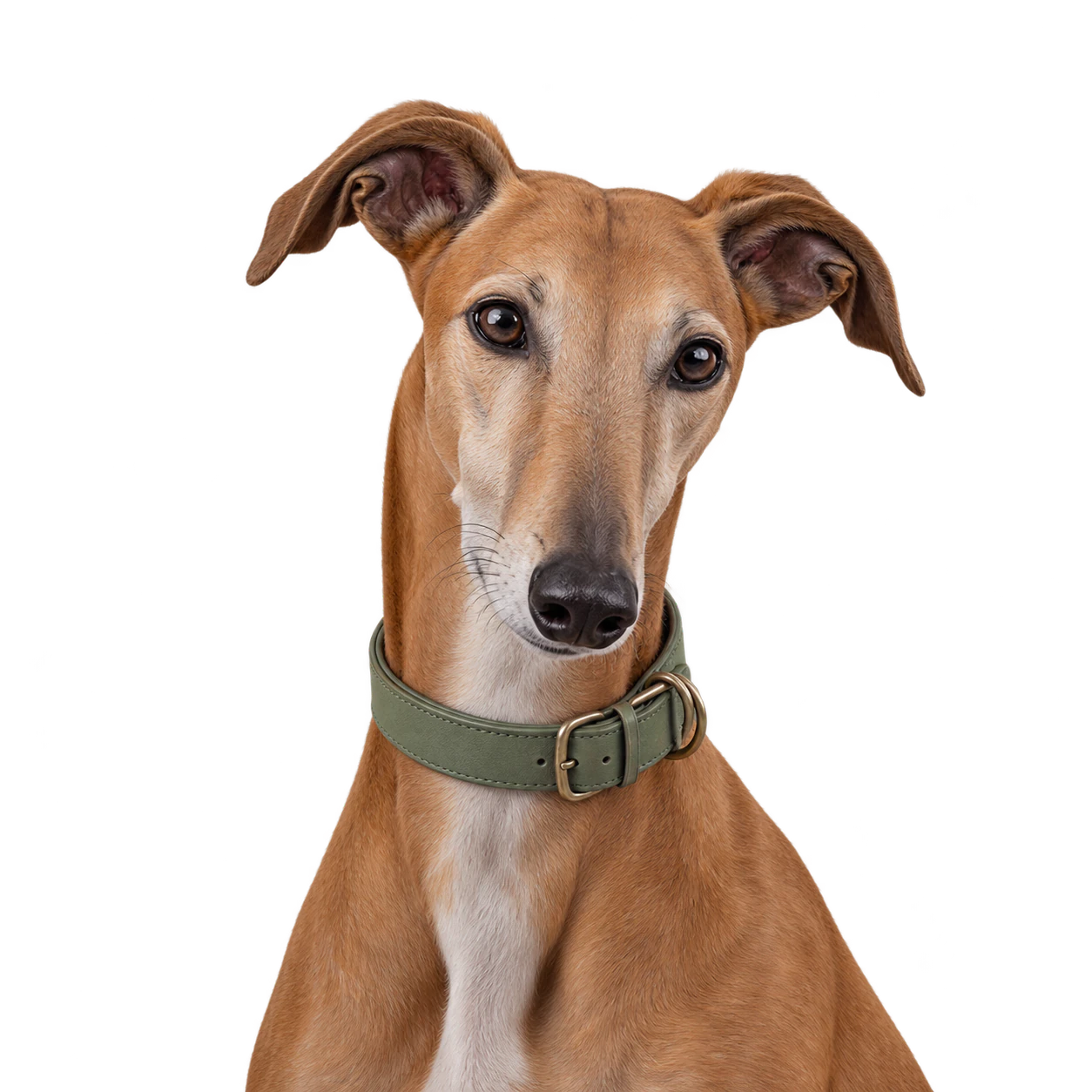
Muted tones and an uncluttered pose make a dog portrait feel considered without adding a scenery backdrop.
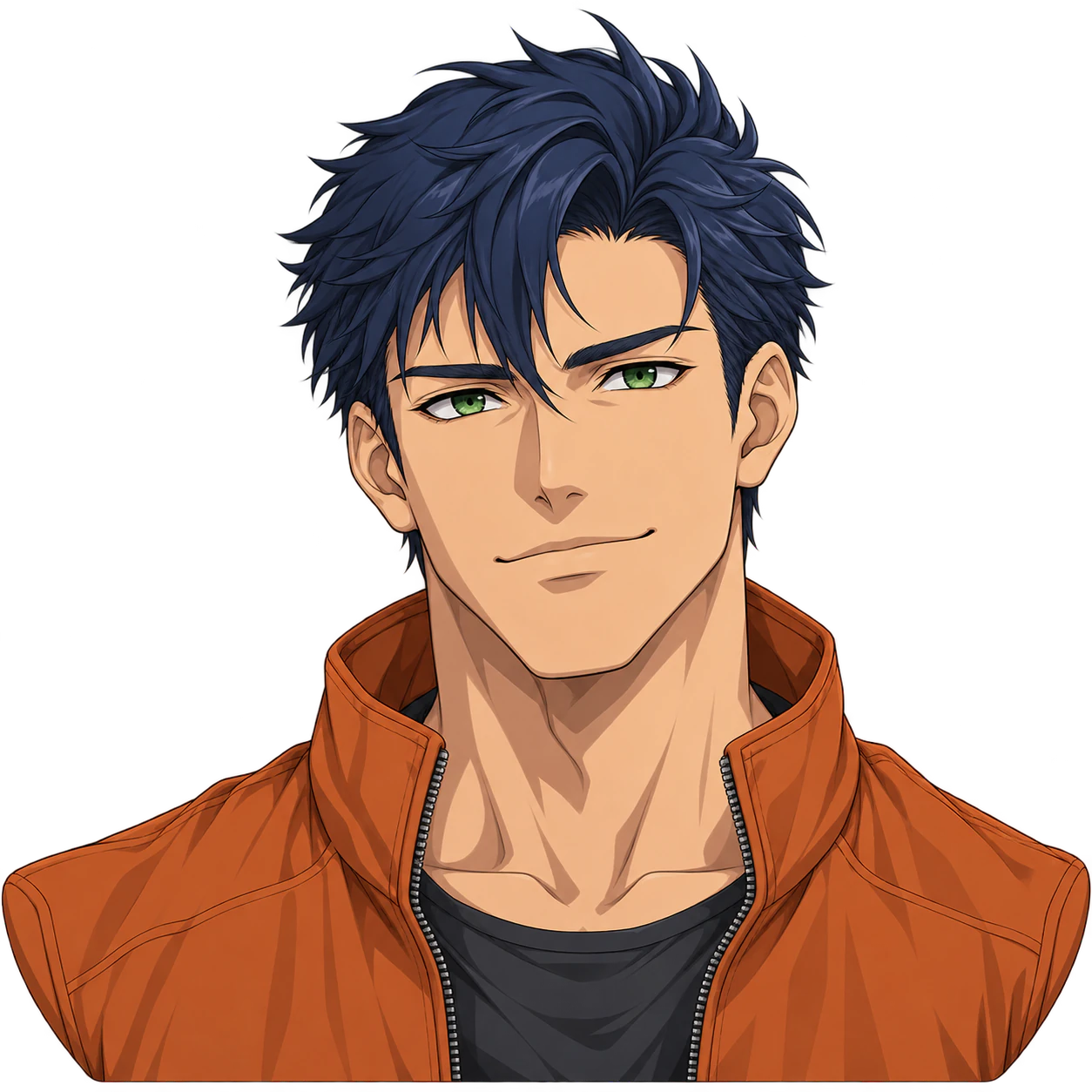
Create one original anime boy avatar with an optional reference. Customize the expression and colors, then check the complete silhouette and genuine PNG transparency.
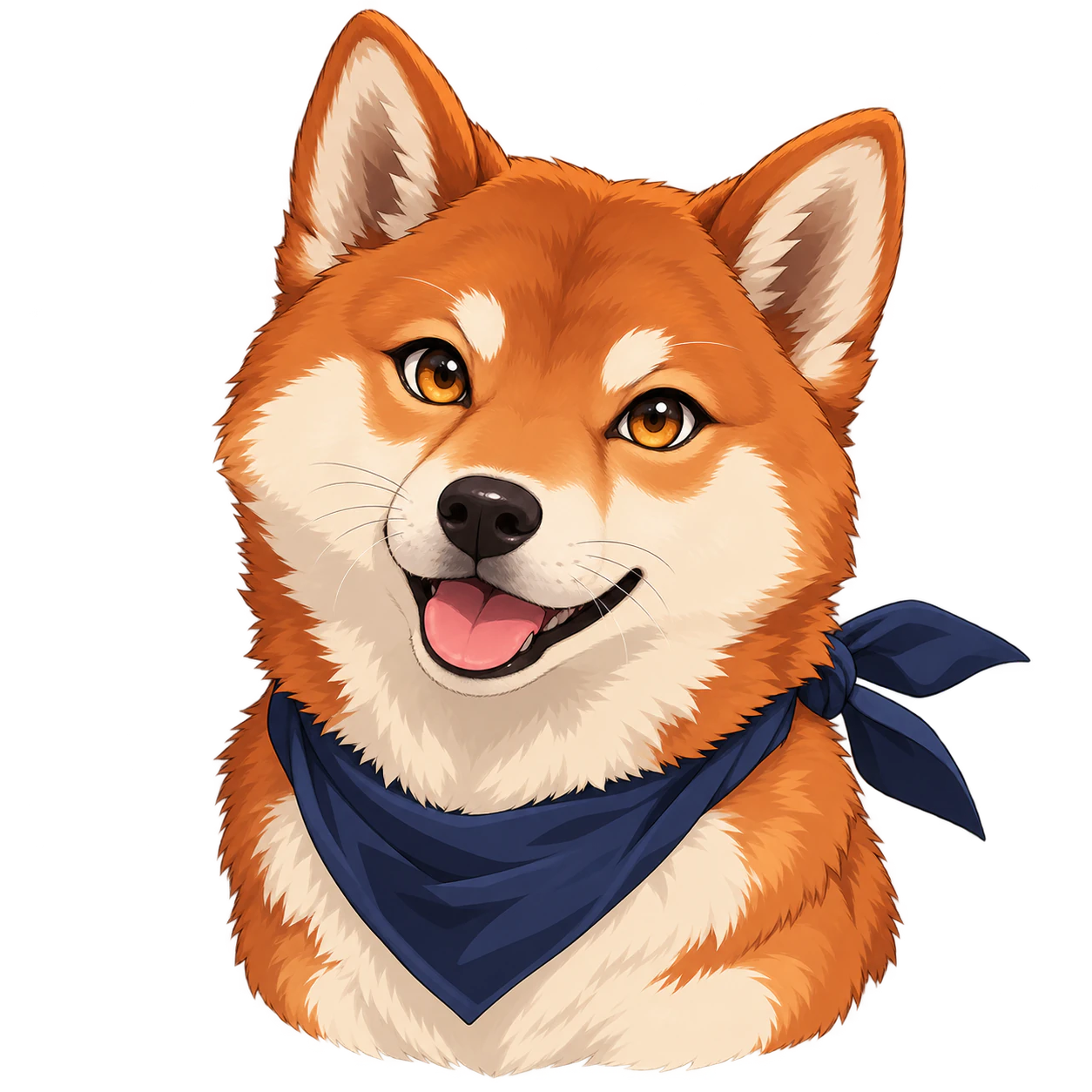
Cel shading and expressive canine eyes turn an original dog into an anime illustration while preserving its muzzle and ears.
One original static avatar illustration from your brief and optional references. The composition can favor a face or a simpler icon. It does not read your Discord account, create a native avatar decoration or automatically upload the picture.
No. The circle-aware direction asks for breathing room around the important features. The delivered artwork remains an image to inspect. Exact circle masks, pixel dimensions and file-size checks require separate processing; do not assume a square composition satisfies platform rules.
This page produces one static image. Animated GIFs, native decorations and coordinated avatar-plus-banner sets are separate tasks. A later generation can use an approved avatar as a reference, but shared colors or a repeated prompt do not guarantee exact visual consistency.
Use one subject, one clear expression and a restrained palette. Favor a complete face or bold icon silhouette over a busy scene. Keep important features away from the edges, then inspect the result at thumbnail size and against both light and dark backgrounds.
No. You can describe an original subject without uploading anything. References are optional appearance or style cues. When you add several, explain which guides the subject and which guides the art direction. The image is newly generated, so compare important features rather than assuming every detail is preserved.
The request targets a model with native transparent-background support. That request alone does not prove the delivered file has alpha. Place the result over both light and dark backgrounds and inspect hair, outlines and accessories. White fill or a checkerboard painted into the picture is not transparency; report any uncertainty before using the image.
Up to eight optional PNG, JPEG or WebP references, each no larger than 10 MB. Use images you are authorized to upload, and label their purpose in your brief. A model's own reference limit can differ; the Agent inspects current support before execution rather than silently promising every upstream parameter.
No. Your brief, selected preferences and staged images first open in Vizify. Review the task, sign in, and send it to start generation. Selected files are initially held in your browser; the App performs the authenticated durable upload after sign-in. Check that the intended subject and reference roles are present before sending.
Preparing the request on this page is free. Running generation and saving the result require sign-in and use Vizify credits. Check the current balance, allowance and price in the App before sending. A free preparation step does not mean unlimited image generation or a guaranteed free download.
No. The examples show a visual direction. Your result can vary with the model, your description, reference images and settings. Check the character details and likeness where relevant, along with the actual transparency and fine edges. The same brief does not guarantee an identical image.
Discord may show the image at a small size and through circular framing. Ask for space around the full head instead of filling every edge. Choose face-focus for an expressive character or icon-silhouette for a simpler mark. These are prompt preferences, not a built-in crop preview or platform uploader.
Shrink your view and check whether the face or icon still reads. Ears, glasses and accessories should not depend on tiny detail. Compare reference cues and inspect the actual alpha around the silhouette. Look at the complete file first, then at thumbnail scale. Try light and dark surfaces to reveal leftover background color or halos. A new request can change the subject’s details, so keep an approved image as a reference and compare each new result.
For a broad original avatar, use PFP Maker. To remove the background from an existing image, use Image Background Remover and compare the subject with the source. Image to Anime handles a photo-first anime transformation. Exact cropping, resizing and platform exports are separate tasks.