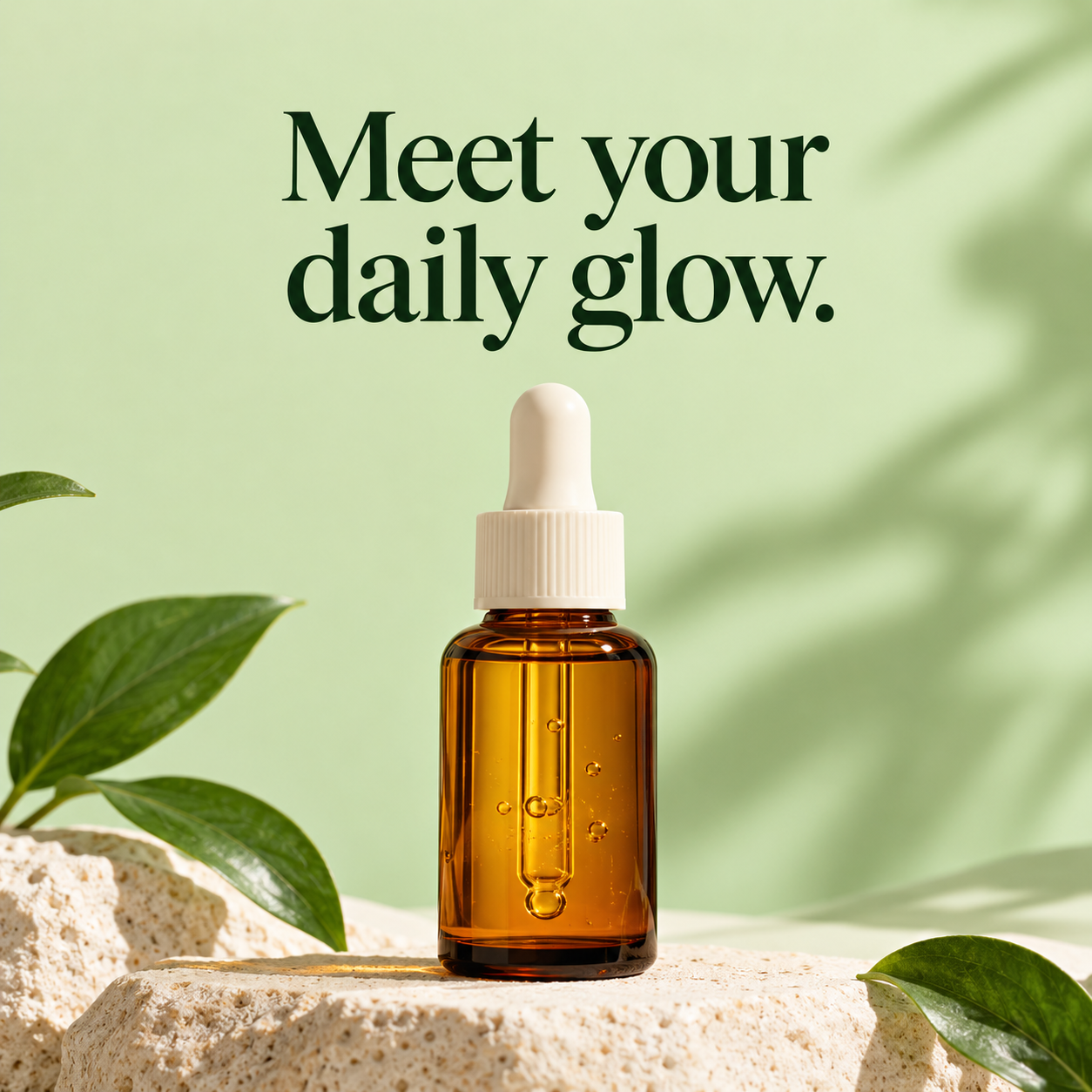
One generated launch image with a prominent short headline, a product focal point, and a clear reading order. Use only your supplied copy and product facts; check the text before posting.
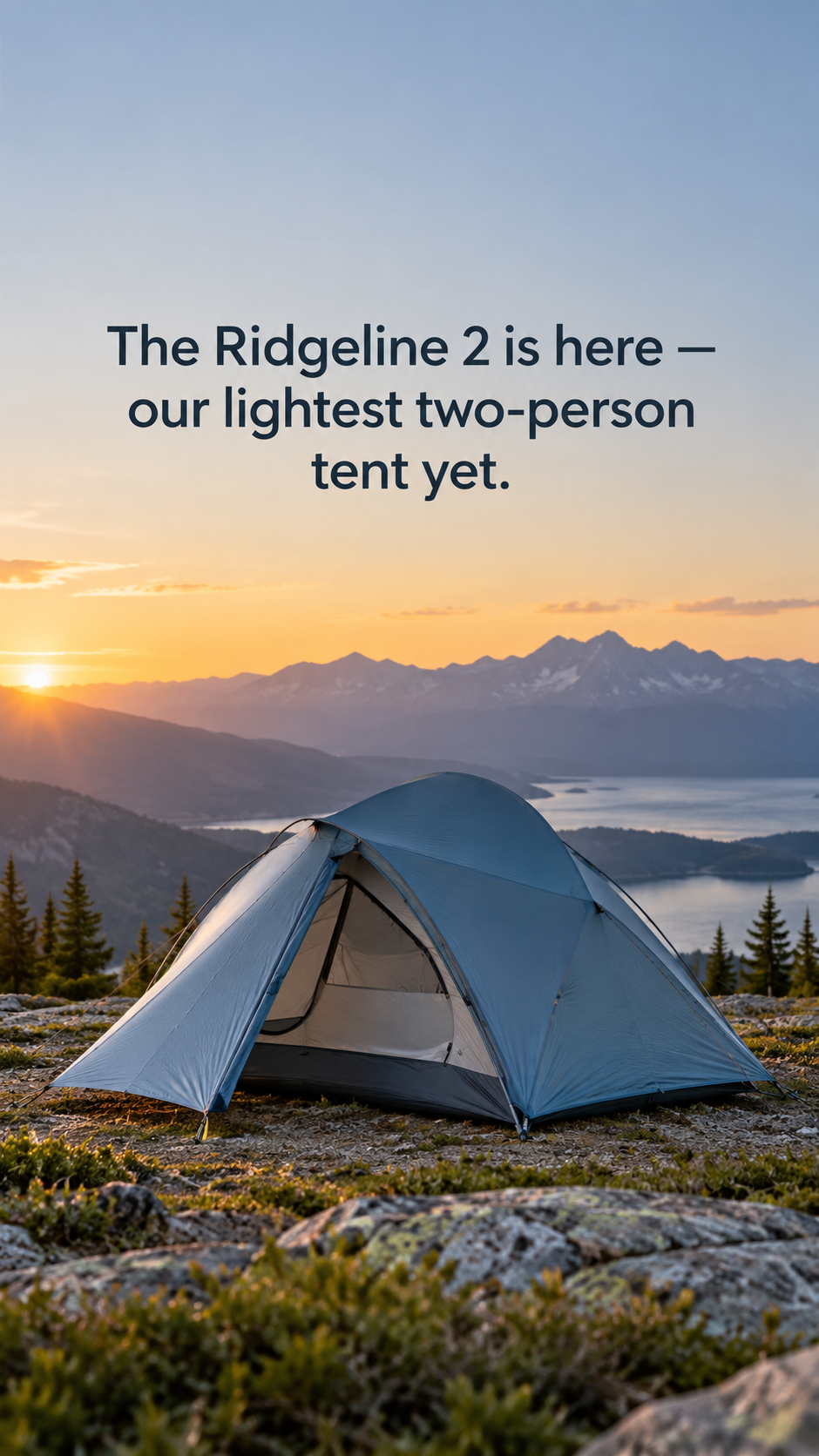
Northfield Trail Co. Ridgeline 2 ultralight two-person backpacking tent in slate blue with a single front vestibule
Your headline
The Ridgeline 2 is here — our lightest two-person tent yet.
Brand colors
Left empty
No reference photo and no color direction, with a long headline. Checks that every word renders, the product is presented as a concept, and no weight or price claim is invented.
Same task, three directions
Pick a direction to start from.
01
Editorial type-led
Oversized serif headline in one corner with the product anchored opposite. Suits beauty, home and lifestyle launches.
02
Bold product close-up
The product fills most of the frame and a short headline sits in a clear band, for feeds where the object sells itself.
03
Story-first vertical
A tall composition that requests a central safe area for the headline and product. Inspect the actual image with the intended Story or Reel crop.
What the template keeps
The parts that stay consistent.
01
One clear message
A short, prominent headline gives the image an immediate point of entry.
02
Product-led composition
The product has its own space, balanced against the copy with deliberate breathing room.
03
Editorial hierarchy
Scale, contrast, and margins guide attention without filling every corner.
How to use it
From details to a result.
01
Describe the product
Name what you are launching. Add a photo when the image must resemble a specific real item.
02
Write the exact headline
Keep the headline short and supply its exact wording. The brief requests that wording; check every word in the generated image.
03
Choose colors and format
Add brand colors if you have them, then pick a square post, a tall Story or a wide banner.
04
Review, generate and check the text
Everything opens in Vizify for review. After generating, compare every word and the product details before posting.
Output boundaries
What to check before you use it.
AI-rendered text may contain mistakes. Keep the headline short and check spelling, contrast, and product details before posting.
Without a reference photo, the product is a generated concept and will not reproduce a specific real item.
Each request produces one image. Extra sizes and variants are separate requests, not an automatic campaign pack.
No engagement or sales uplift is implied; the template only structures the visual.
Format, margins and safe-area instructions are requests, not guaranteed proportions or pixels. Inspect the actual image and destination crop before sharing.
QuestionsDo I need to upload a product image?+
Upload one when the result needs to resemble a specific product. You can also start from a description for a concept image. One PNG, JPEG, or WebP up to 10 MB is supported here.
Can I change the headline and colors?+
Yes. Supply your exact headline and color direction before continuing, then review the prepared request in Vizify. You can ask for further changes after generation.
Does this produce a complete social campaign?+
Each request starts one image task. Additional sizes, variants, and revisions are separate requests subject to your account's access and credit rules.
Can I add a price or a launch date?+
Add any price or launch date to the additional direction exactly as it should appear. The brief requests only supplied prices, dates and discounts; inspect the actual image for changes or invented details.