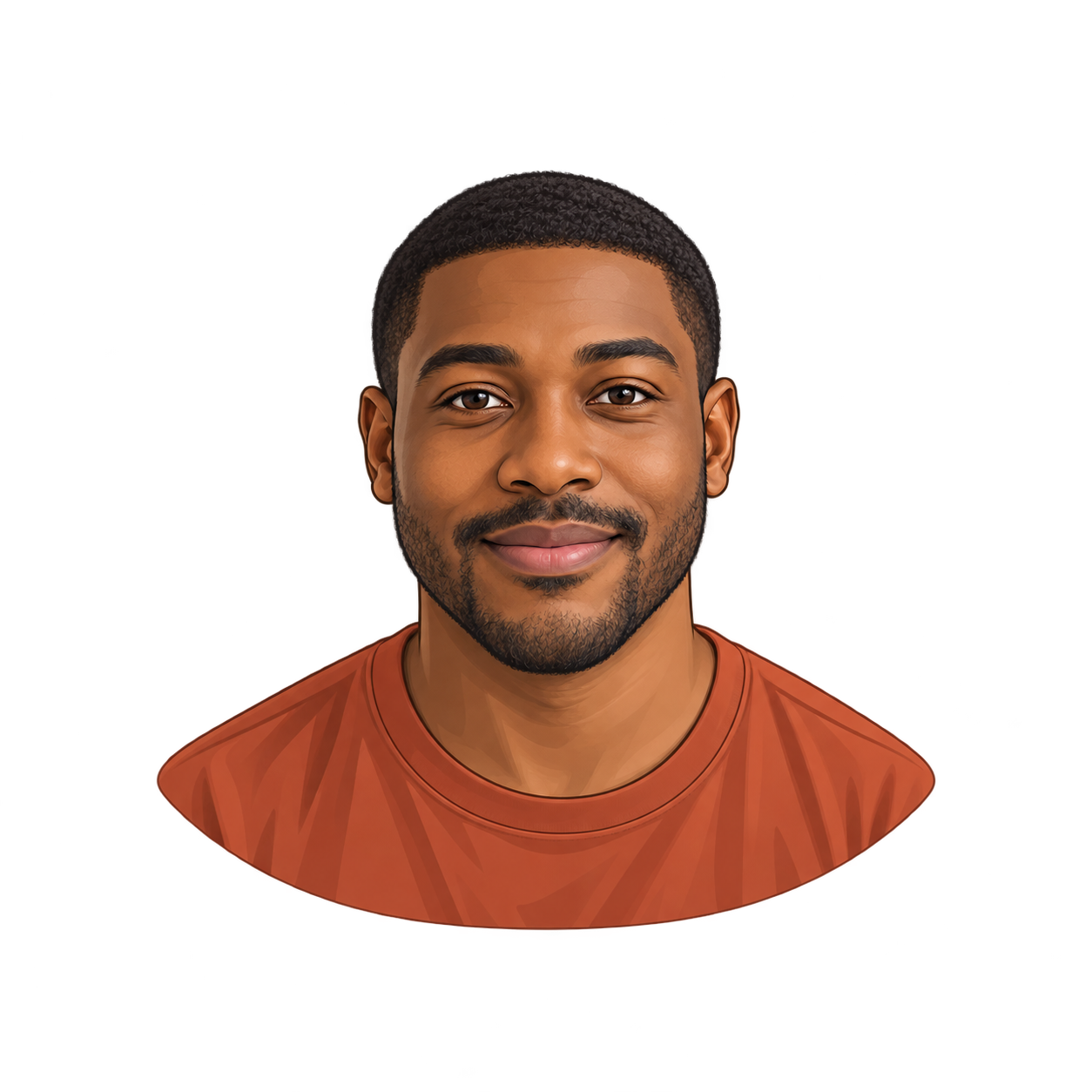
One photo you are authorized to use
Cartoon direction and appearance cues to keep
Optional visual preferences; remove any you do not need
Upload one portrait and choose a cartoon direction. Keep the features that make the person recognizable in your brief, then review one newly illustrated result in Vizify.
Your photo and instructions open in Vizify for review. Sign in and send the prepared task to run the transformation.
One photo you are authorized to use
Cartoon direction and appearance cues to keep
Optional visual preferences; remove any you do not need
One cartoon interpretation of your source portrait
An image to inspect for details, complete edges and real alpha
The photo supplies appearance and pose cues. Clean shapes emphasize readable outlines; softer shading gives a gentler illustrated portrait. Both are generative interpretations rather than a fixed filter over the original pixels.
Check the glasses, hairstyle, face shape and expression against your source. Generative restyling can change small details even when the brief asks to keep them.
This page prepares your request. Vizify opens it for review, then uploads selected images after sign-in when you send the task. Generation uses credits; preparation does not start a paid image job.
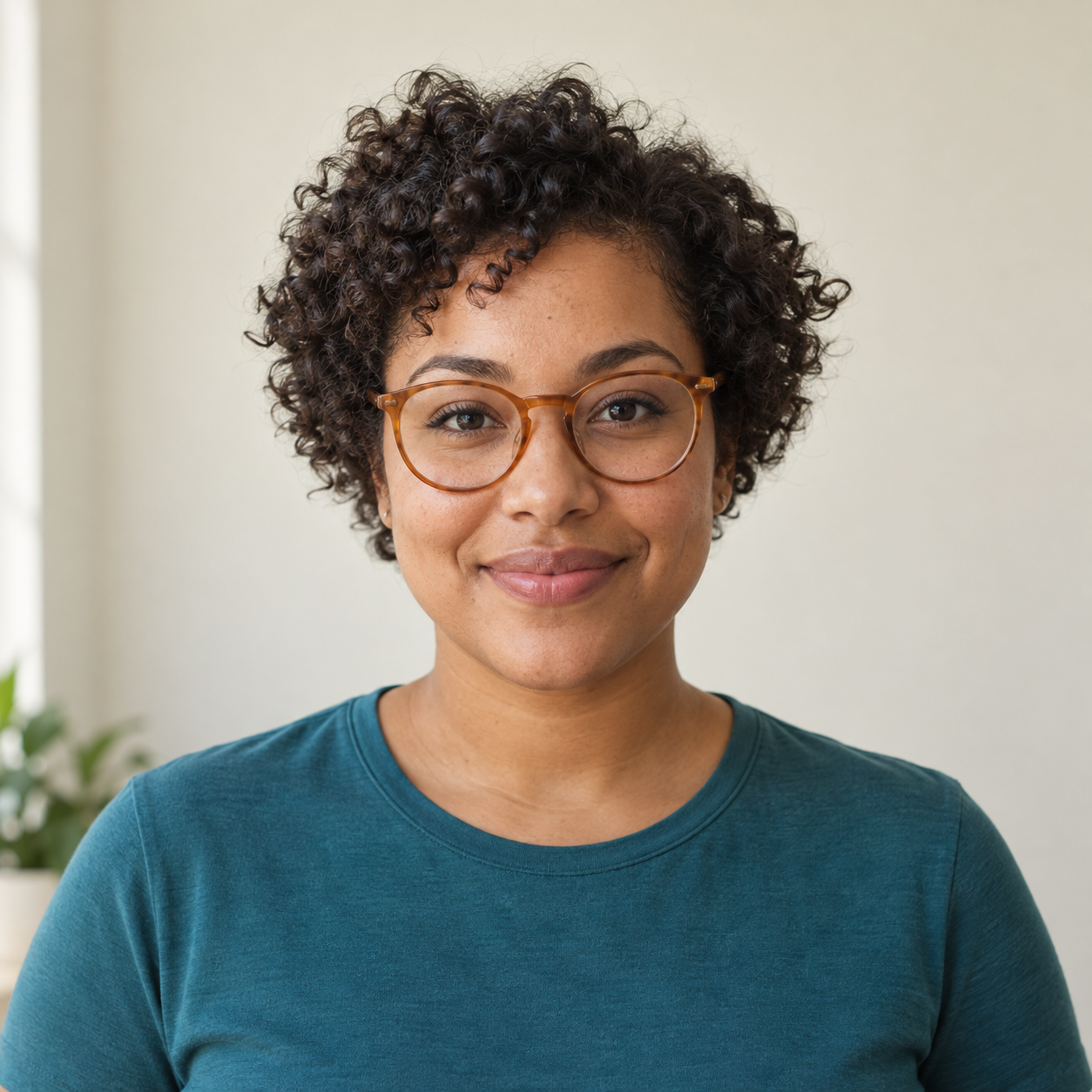
Turn the attached synthetic adult woman's portrait into a clean cartoon head-and-shoulders illustration. Retain her warm medium-brown skin, short dark tightly curly hair, round amber glasses, calm closed-mouth smile and teal crew-neck shirt. Simplify into clear outlines and flat cartoon colors. Keep the entire hair and shoulders inside a square composition with space around them. Use true alpha transparency; no text, logos, watermark, scenery or collage.
Example transformation derived from the pictured synthetic source; exact likeness is not guaranteed.
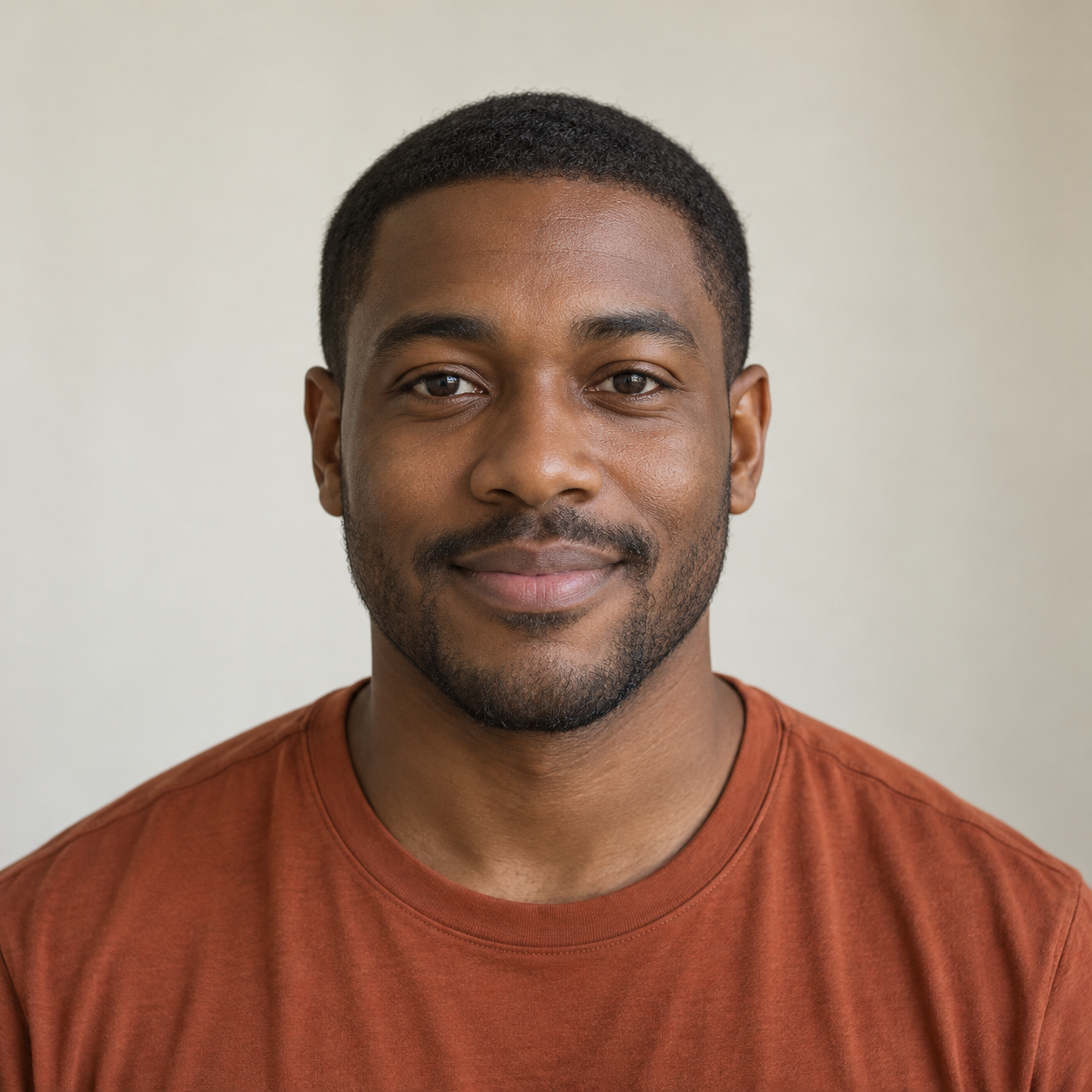
Turn the attached synthetic adult man's portrait into a soft-shaded cartoon head-and-shoulders illustration. Retain his deep brown skin, short black hair, faint beard, warm relaxed expression and plain rust-colored shirt. Keep the face and complete shoulders recognizable, with space around the head. Use true alpha transparency; no text, letters, logos, watermark, scenery or collage.
Example transformation derived from the pictured synthetic source; exact likeness is not guaranteed.
One newly generated cartoon portrait based on your required source photo. Choose clean shapes or softer shading and identify the details to retain. The output is a single image, not a video cartoon, a layered document or an editable character assembled from parts.
No. The model redraws the portrait in a cartoon style. It can simplify hair, skin texture and glasses, and may shift facial features. Compare the result with your source; do not use it as proof of exact identity or expect unchanged pixels outside a selected region.
Yes. The two presets are optional starting points. Remove them or describe bold comic outlines, flat color blocks or gentle shading in your own words. Mention which source features should take priority if the style would otherwise change them.
This page requires a photograph and restyles that pictured person. Cartoon PFP Maker can invent a character from text with optional references. Use this transformation when your source portrait matters; use the maker when you want a new cartoon character.
Yes. This transformation starts with one portrait photo, not a text-only character idea. Use a clear view of one adult, with the hairstyle and accessories you want to retain visible. State the features that matter most. If you want a wholly invented character, start with PFP Maker instead.
The request targets a model with native transparent-background support. That request alone does not prove the delivered file has alpha. Place the result over both light and dark backgrounds and inspect hair, outlines and accessories. White fill or a checkerboard painted into the picture is not transparency; report any uncertainty before using the image.
One PNG, JPEG or WebP image, up to 10 MB. Choose a sharp, well-lit portrait instead of a collage or a tiny screenshot. This page treats the upload as the source to transform; it does not collect a mask or multiple before images.
No. Your brief, selected preferences and staged images first open in Vizify. Review the task, sign in, and send it to start generation. Selected files are initially held in your browser; the App performs the authenticated durable upload after sign-in. Check that the intended subject and reference roles are present before sending.
Preparing the request on this page is free. Running generation and saving the result require sign-in and use Vizify credits. Check the current balance, allowance and price in the App before sending. A free preparation step does not mean unlimited image generation or a guaranteed free download.
No. The examples show a visual direction. Your result can vary with the model, your description, reference images and settings. Check the character details and likeness where relevant, along with the actual transparency and fine edges. The same brief does not guarantee an identical image.
Write the features to keep before describing the new style: hair silhouette, glasses, face shape and expression. A clear source helps, but detailed instructions do not lock identity. Clean outlines and soft shading are art directions; they are not sliders that preserve source pixels. Review the prepared task before you run it.
Check the glasses, hairstyle, face shape and expression against your source. Generative restyling can change small details even when the brief asks to keep them. Look at the complete file first, then at thumbnail scale. Try light and dark surfaces to reveal leftover background color or halos. A new request can change the subject’s details, so keep an approved image as a reference and compare each new result.
For a broad original avatar, use PFP Maker. To remove the background from an existing image, use Image Background Remover and compare the subject with the source. Image to Anime handles a photo-first anime transformation. Exact cropping, resizing and platform exports are separate tasks.