A subject brief and up to eight optional references
Sticker subject, gesture, palette and outline direction
Optional visual preferences; remove any you do not need
Describe one subject and a gesture, then choose a drawn white outline or no outline. Review one standalone static sticker illustration, with its whole silhouette inside the canvas.
Review your brief and references in Vizify before generation. Preferences guide new artwork; they are not exact export settings.
A subject brief and up to eight optional references
Sticker subject, gesture, palette and outline direction
Optional visual preferences; remove any you do not need
One static digital sticker illustration
An image to inspect for details, complete edges and real alpha
A simple pose and complete silhouette help a digital sticker work on different surfaces. The outline is a requested illustration treatment, not a measured cutting path or an exact stroke-width setting.
Check paws, hands and held objects for extra shapes. The white outline, when requested, should follow the illustration without enclosing a white rectangle. Verify real alpha outside the contour.
This page prepares your request. Vizify opens it for review, then uploads selected images after sign-in when you send the task. Generation uses credits; preparation does not start a paid image job.
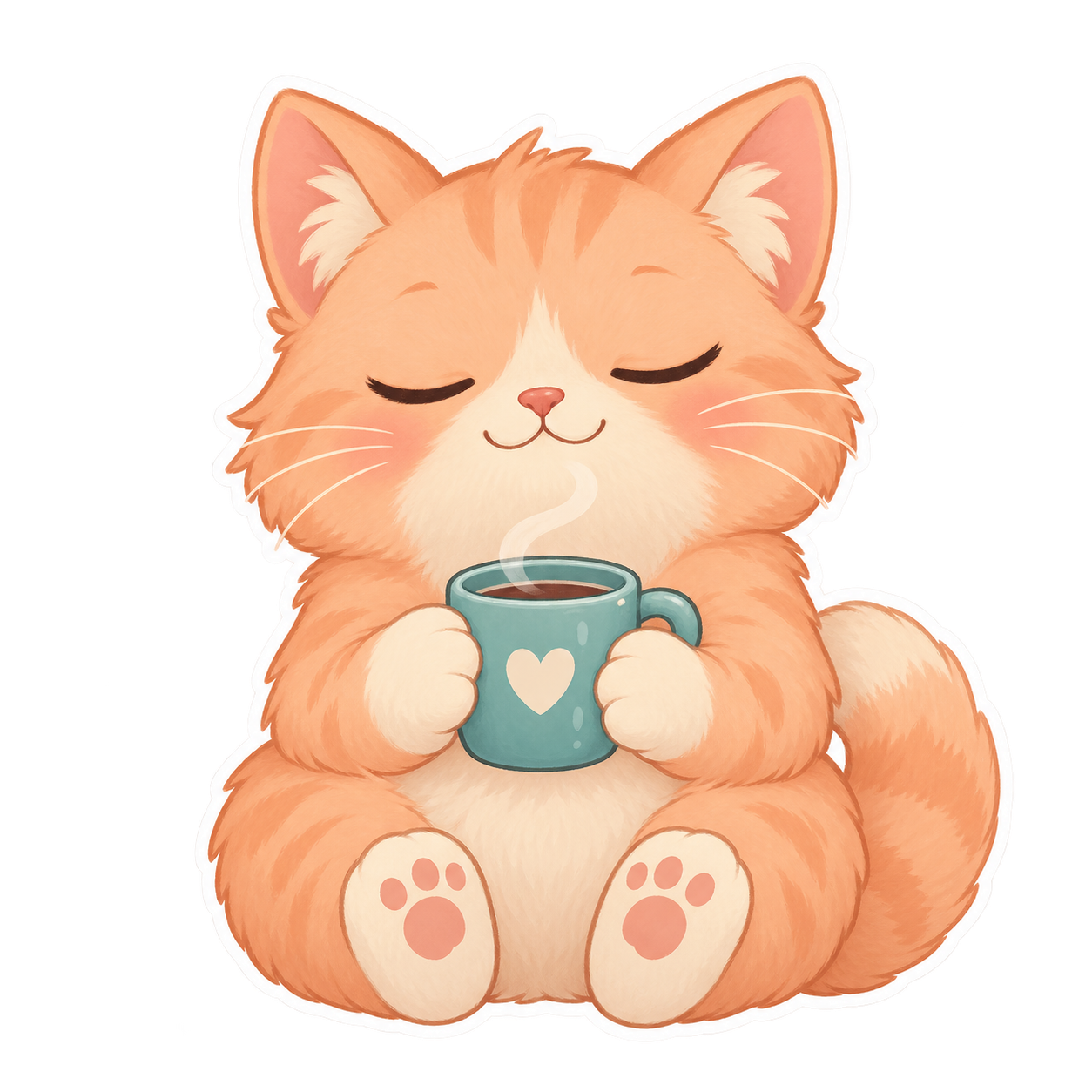
Create one square standalone digital sticker illustration of an original peach-colored cat with a cream muzzle, sleepy closed eyes and a small teal mug held between both front paws. Use a soft warm palette, a complete readable silhouette and a white drawn outline following the subject. Keep all paws, ears and the mug inside the canvas. Use true alpha transparency outside the outline; no text, writing, logos, watermark, white rectangle or collage.
Example image of this brief. Inspect the actual alpha and complete silhouette.
Create one square standalone digital sticker illustration of an original friendly plum mushroom character with a cream stem, two small dark eyes, a simple smile and a tiny green sprout growing from the cap. Use clear rounded shapes with no drawn border. Keep the complete cap and sprout inside the canvas. Use true alpha transparency; no white outline, scenery, text, letters, logos, watermark or collage.
Example image of this brief. Inspect the actual alpha and complete silhouette.
One original static digital sticker image from your brief and optional references. Describe a subject and a readable gesture, with a white drawn outline or no outline. The result is a raster illustration, not a physical sticker, cutting file or installed messaging pack.
No. The white outline is drawn into the image as part of the art direction. It is not a vector die line, measured bleed, contour-cut instruction or print-ready color specification. Exact outlines and physical production require separate design and printing steps.
A suitable image may become source material for a pack, but this page does not validate each platform's current dimensions, file size or packaging rules and does not install anything. A multi-sticker set also needs consistency checks and separate exports beyond this single-image task.
Use an approved character image as an optional reference and name its stable features. Each request still produces one image and can change markings, face or outfit. A repeated prompt is not a guarantee of a matching pack; compare every new sticker.
No. You can describe an original subject without uploading anything. References are optional appearance or style cues. When you add several, explain which guides the subject and which guides the art direction. The image is newly generated, so compare important features rather than assuming every detail is preserved.
The request targets a model with native transparent-background support. That request alone does not prove the delivered file has alpha. Place the result over both light and dark backgrounds and inspect hair, outlines and accessories. White fill or a checkerboard painted into the picture is not transparency; report any uncertainty before using the image.
Up to eight optional PNG, JPEG or WebP references, each no larger than 10 MB. Use images you are authorized to upload, and label their purpose in your brief. A model's own reference limit can differ; the Agent inspects current support before execution rather than silently promising every upstream parameter.
No. Your brief, selected preferences and staged images first open in Vizify. Review the task, sign in, and send it to start generation. Selected files are initially held in your browser; the App performs the authenticated durable upload after sign-in. Check that the intended subject and reference roles are present before sending.
Preparing the request on this page is free. Running generation and saving the result require sign-in and use Vizify credits. Check the current balance, allowance and price in the App before sending. A free preparation step does not mean unlimited image generation or a guaranteed free download.
No. The examples show a visual direction. Your result can vary with the model, your description, reference images and settings. Check the character details and likeness where relevant, along with the actual transparency and fine edges. The same brief does not guarantee an identical image.
Choose one subject and one action: a sleepy cat holding a mug or a friendly mushroom sprout. Keep held objects large enough to read. A white outline can separate the character from another surface, but it is still illustration content. Check the file before preparing platform packs or physical prints elsewhere.
Check paws, hands and held objects for extra shapes. The white outline, when requested, should follow the illustration without enclosing a white rectangle. Verify real alpha outside the contour. Look at the complete file first, then at thumbnail scale. Try light and dark surfaces to reveal leftover background color or halos. A new request can change the subject’s details, so keep an approved image as a reference and compare each new result.
For a broad original avatar, use PFP Maker. To remove the background from an existing image, use Image Background Remover and compare the subject with the source. Image to Anime handles a photo-first anime transformation. Exact cropping, resizing and platform exports are separate tasks.